
This post is protected. To view it, enter the password below!
New Release: Nebula 2.1 & Nebula Creator
1. Nebula Creator
What it’s for
With the Nebula Creator, everyone can finally use Nebula for free – regardless of whether you’re already an Origins user or not.
The Creator is a free desktop software that prepares point cloud projects for online visualization in Nebula.
How it works
Download the Creator. Convert your point cloud data and add panos if you wish. Then simply follow the usual Nebula workflow. Done!
2. Nebula 2.1 – Most important new Features
AWS (Amazon Web Services) Compatibility
What it’s for
As promised, we are continuously expanding the number of cloud services that can be connected to Nebula. Due to strong demand, this update introduces support for AWS.
How it works
In the video, we show step by step how to connect your AWS account to Nebula – even without extensive IT knowledge.
The short version? Just follow the instructions laid out in Nebula.
New Download Manager


What it’s for
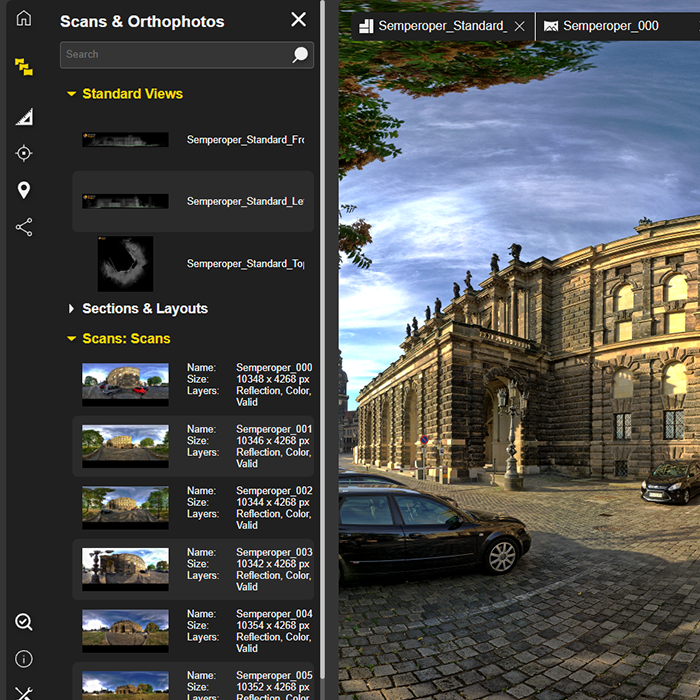
Our new Download Manager allows you to download orthophotos and 3D points directly in the browser – a long-awaited feature. This allows you not only to visualize results, but also to easily share them.
How it works
Click on the Download Manager icon in the menu at the bottom left. Select the desired orthophotos or 3D points in the new window. Click on “ALL” to select all available files at once. Simply click on Download – done.
Height and Cluster Navigation
What it’s for
To make navigation in Nebula even more intuitive, scan positions can now be filtered and displayed by height or cluster.
How it works
The video includes a detailed explanation.
The short version? Simply filter by height or cluster and show or hide scan positions as needed.
"Display Range" Option in Bubble Views
What it’s for
The perfect complement to the new height and cluster navigation! The “Display Range” function allows scan positions to be shown or hidden based on their distance from your current viewpoint in the Bubble View.
How it works
Simply select the distance from which scan positions should be displayed via the menu in the top right corner.
Measurements & POIs in Bubble Views
What it’s for
Another great enhancement for the Bubble View: measurements and POIs can now also be created directly within the Bubble View.
How it works
Download the coordinates, then use Ctrl + mouse click to measure distances and 3D points.
Of course, POIs can also be enriched with additional links and documentation.
3. Nebula 2.1 – More New Features


4. Nebula 2.1 – Refinements and Fixes
- Improved clipping box handling
- Improved Settings behaviour & appearance
- Improved workflow for purchasing additional slots
- Improved 3D Visualization
- Improved Mini Map for easier navigation
- Extended measurements units (feet)
- Dynamic point-display adjustment for improved performance
- Optimized point cloud loading for faster performance
- Fix: Updates are synchronized in real time across all views
- Fix: Unified sharing links for all users
- Fix: Automatically update public links
- Fix: Microsoft SharePoint Public Links
- Fix: Sidebar issues in Firefox
Book your demo today!
Want to see those shiny new features first-hand?
Simply book a free, no-obligation demo with one of our support engineers below.
Want to keep up with the latest pointCab news?
Then follow us on Social Media or subcribe to our newsletter!
Photogrammetric measurement and 3D model creation
USER STORY
MOSBURG IN WIESBACH – PHOTOGRAMMETRIC MEASUREMENT AND 3D MODEL CREATION
What it's about?
As part of a seminar paper at the RheinMain University of Applied Sciences, Frank Schirmer and Mobahil Ahmad Qamar investigated the extent to which photogrammetry can be used as a transformative tool in the preservation of existing structures.
To this end, a survey of the Mosburg in Wiesbaden was created, evaluated and processed using PointCab Origins, among other tools, to create a 3D model. We present their workflow and results here.
The property – the Mosburg in Wiesbaden
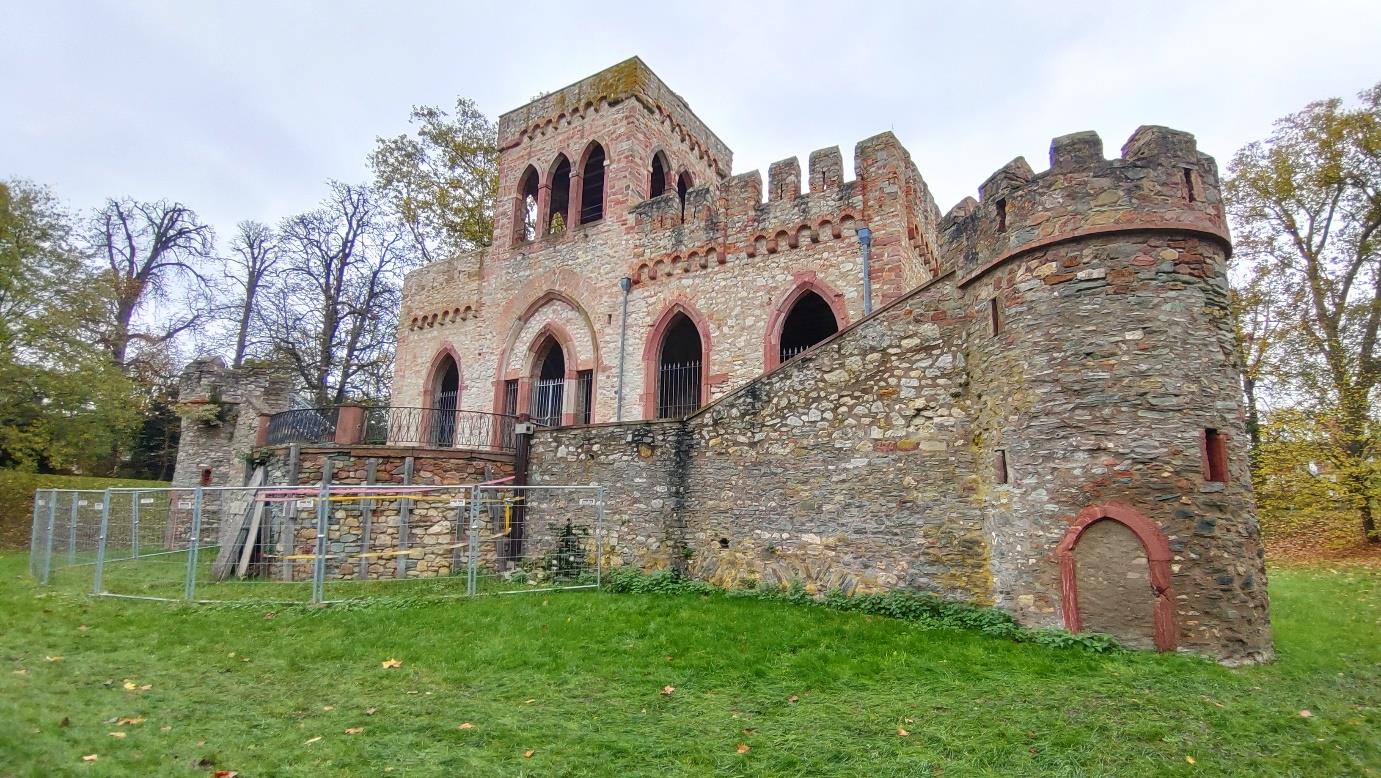
The Mosburg is a so-called artificial ruin and is located in the Biebricher Schlosspark in Wiesbaden. It can look back on a long history and was built from 1805 to 1806 on the foundations of a moated castle, which probably dates back to the 14th or 15th century. Among other things, it served as a residence, artist’s studio and local history museum.
After the Second World War, the artificial castle unfortunately became an actual ruin. The castle is currently not open to the public. Frank and Mobahil were also unable to enter the castle. However, restoration work has partially begun and is being coordinated by the Hessian Real Estate Management.
Preparation, hardware and measurement
In order to survey the Mosburg as quickly and accurately as possible, Frank and Mobahil began by making relatively simple sketches to determine the optimum viewpoints and heights for the images. The sketches were then expanded in an iterative process until a detailed survey plan was available.
This was followed by the selection of surveying equipment. Among other things, the team decided to use simple smartphone cameras to speed up the survey. In order to achieve the best possible result, care was also taken to carry out the survey on a cloudless day with low humidity. The following hardware was used:
- DJI Mavic Mini UAV
Thanks to the DJI drone, the Mosburg could be photographed from different heights and perspectives. Even areas that were difficult to access, as well as the interior, could be captured better. - Sony A6000:
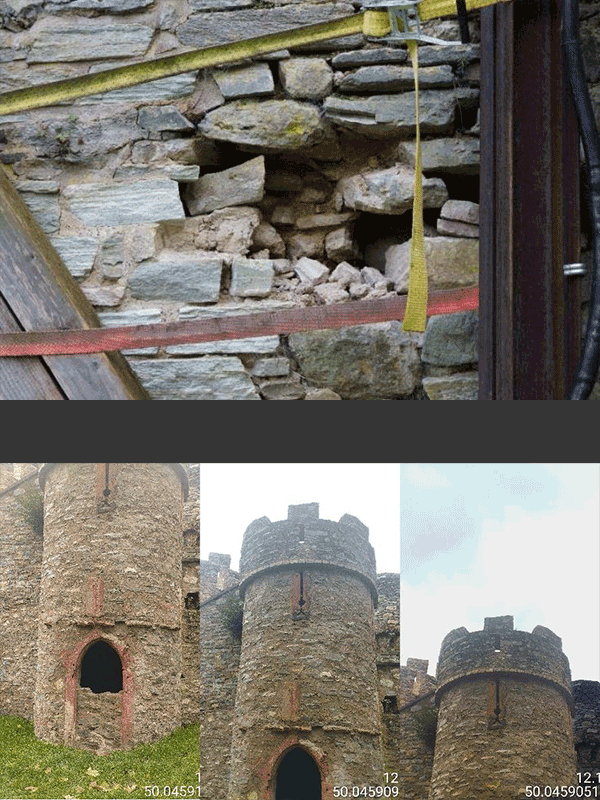
This camera was mainly used to capture the details of the rear supporting wall, which is particularly badly damaged. This enabled cracks, protrusions and fractures to be precisely documented. - Sony Xperia XQ-BT-52 & Xiaomi Redmi 12
With the two smartphone cameras, the remaining, better-preserved parts of the Mosburg could be captured quickly and efficiently.
- WORTH KNOWING
The entire survey of the Mosburg took about 4 hours and was completed in 3 phases. In the first phase, the drone and the Sony camera were used to capture the rear supporting wall. In the second phase, the rest of the castle was photographed with the smartphones. Finally, the drone was sent back inside to take the remaining pictures. A total of over 600 images were taken.
To get the best possible results from a photogrammetric survey, you should pay particular attention to the following settings in advance:
– Shutter speed
– ISO (light sensitivity)
– Sufficient lighting or natural light
Data processing –
creating meshes and point clouds in MEtAshape
The images, which were taken with 4 different devices and 6 different cameras, have to be merged in the next step and converted into a mesh or point cloud. To achieve this, Frank and Mobahil decided to use Agisoft’s Metashape software. The process was completed in 6 steps:
- Data import
When importing, the team creates a separate calibration group for each physical camera, as the smartphone cameras use different resolutions and focal lengths. - Alignment (registration) of the photos
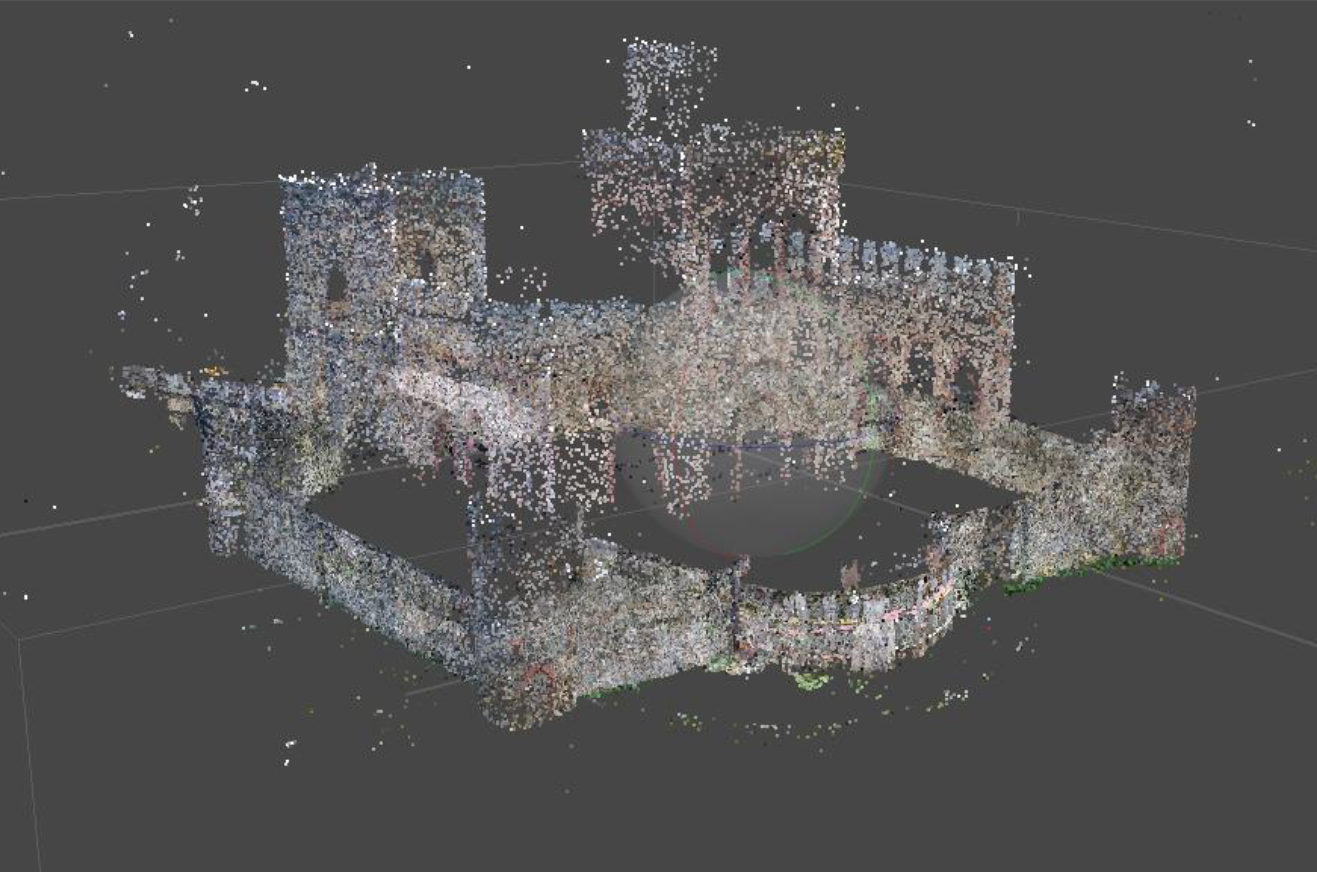
Tie points, which represent overlaps in the individual photos, are used to “unite” all the photos into an overall image. The team identifies 4000 tie points using the highest possible resolution. The alignment is then further improved in an interactive process until an initial point cloud of tie points is created at the end.
- Mesh creation
A mesh is now created in a further iterative process. Here too, the highest possible resolution is used first and scaled down step by step. - Create texture
Metashape creates the texture based on the meshes. The higher the selected resolution, the more accurate the geometry. - Create point cloud
Based on the results created in the previous steps and various other parameters, Metashape creates a complete point cloud in this final step. - Export
When exporting, it is important to choose the right format for further processing. Not all formats contain all the important information and not all software can read all formats. In this case, the team decided to export the point cloud in .obj/.pts format.
- WORTH KNOWING
In a personal conversation, Frank tells us that he initially tried out various formats when exporting until he found a format that he could continue working with cleanly in Origins. This is a difficulty that we often hear about. There are simply so many formats that fulfill different purposes, and users are often unaware of the advantages and disadvantages.
If possible, we recommend exporting the point cloud as a .las file. The .las format has sufficient information content for most applications and is highly interchangeable. This means that the information can usually be transferred cleanly when exporting and switching from one software to another.
If you would like to find out more about point cloud formats, you are welcome to watch our webinar on the subject.
Data processing and evaluation –
Fast results with PointCab Origins
Once a point cloud has been generated from the photogrammetric images, results can now be produced that can be used as a planning basis for future restoration work.
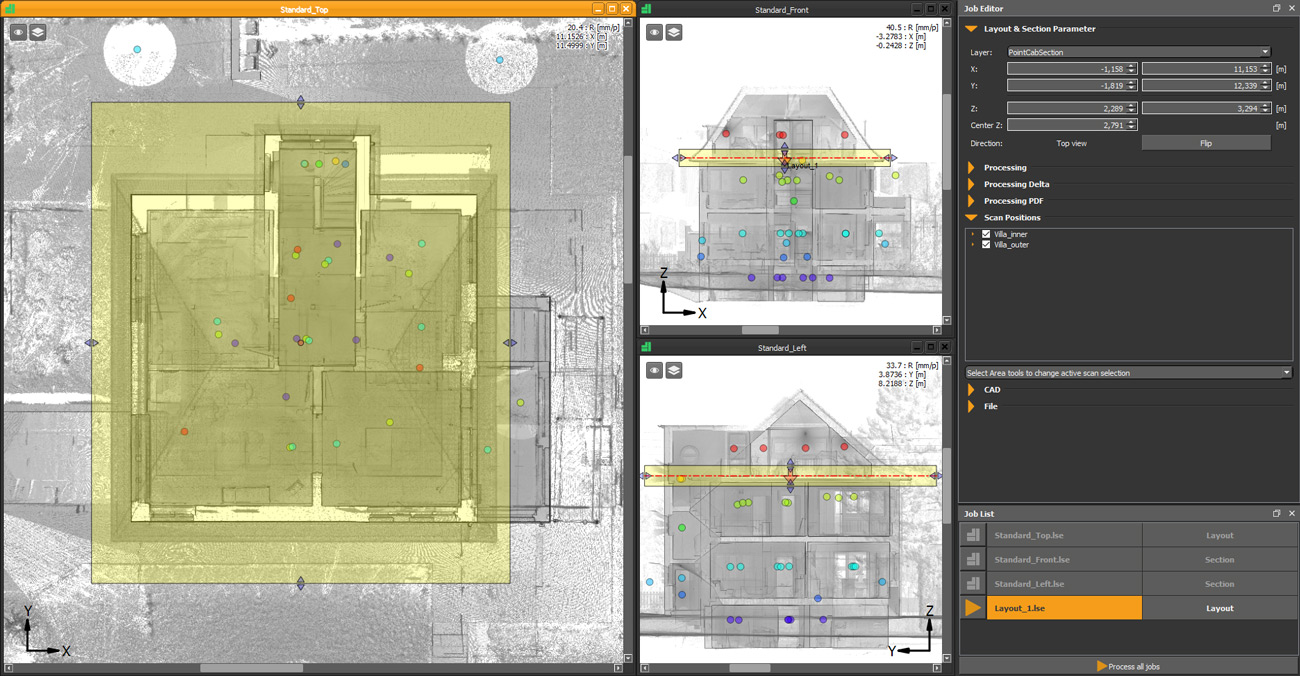
To do so, the team imports the point cloud into PointCab Origins. The 3 standard views are created automatically, providing a quick overview and orientation.
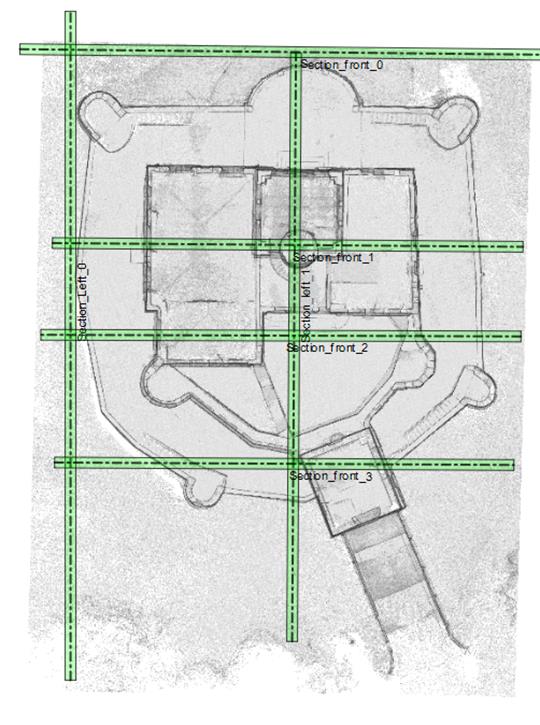
Using the layout & section tool, they can create the layouts and sections they need for further processing with just a few clicks. Important information such as distances, area calculations or level deviations can already be extracted from these in Origins. This means that the floor plans already form a solid planning basis for a renovation.
The layouts are automatically exported by Origins as .dwg files and can thus be imported directly into CAD software, in this case BricsCAD, for 3D modeling.
The team also creates the vector lines from the floor plans using the semi-automatic vectorizer in Origins. These can be imported into BricsCAD in the same way as the floor plans, making it much easier to create a 3D model.
In addition to the quick creation of results from the point cloud, PointCab Origins offers another major advantage: simple visual inspection of the data quality.
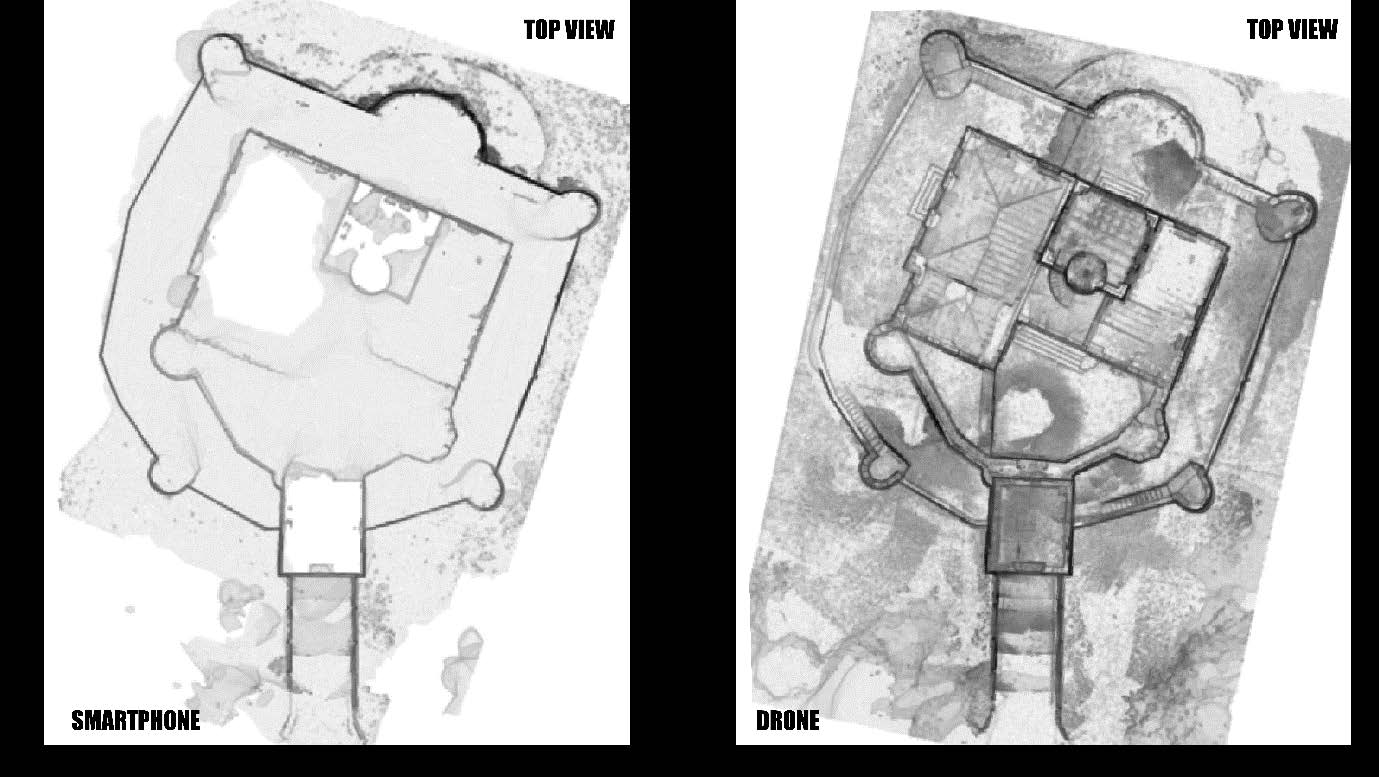
The team simply created and compared a floor plan of the smartphone point cloud with that of the drone point cloud and was thus able to quickly recognize whether the most important structures could also be captured cleanly via the smartphone.
- WORTH KNOWING
Although the team used PointCab Origins for the first time for this project and did not receive any training, the evaluation and creation of results with Origins only took about 2 hours.
In a personal conversation, Frank tells us that he was able to quickly find his way around the software, especially thanks to the intuitive display with the standard views.
Conclusion
The project work has shown that even simple smartphones have a place in the photogrammetric recording of buildings. Of course, high-resolution cameras also had to be used in this case in order to capture important details such as the rear supporting wall if it was to be accurately modeled afterwards. In addition, the interior of the castle could only be captured by drone flight, as the site was simply not accessible. Nevertheless, the parts of the building that did not require special attention could be captured with satisfactory data quality via smartphone. The comparison between the floor plans created in Origins shows this very well.
Accordingly, the project work shows that for certain use cases, such as the creation of a simple site plan, the use of smartphones is not only possible, but also makes a lot of sense due to the time saved during recording.
Want to keep up with the latest pointCab news?
Then follow us on Social Media or subcribe to our newsletter!
Origins 4.1 – The latest functions
ORIGINS 4.1 – THE LATEST FUNCTIONS
- Freddie
- May 11, 2023
- 11:00
Discover all-new functions in the latest 4.1 Origins Release!
Due to our constant development and the inspiring feedback from our users, PointCab Origins 4.1 comes with many new functionalities and enhancements. Check out the new functions below.
NEW FUNCTIONS
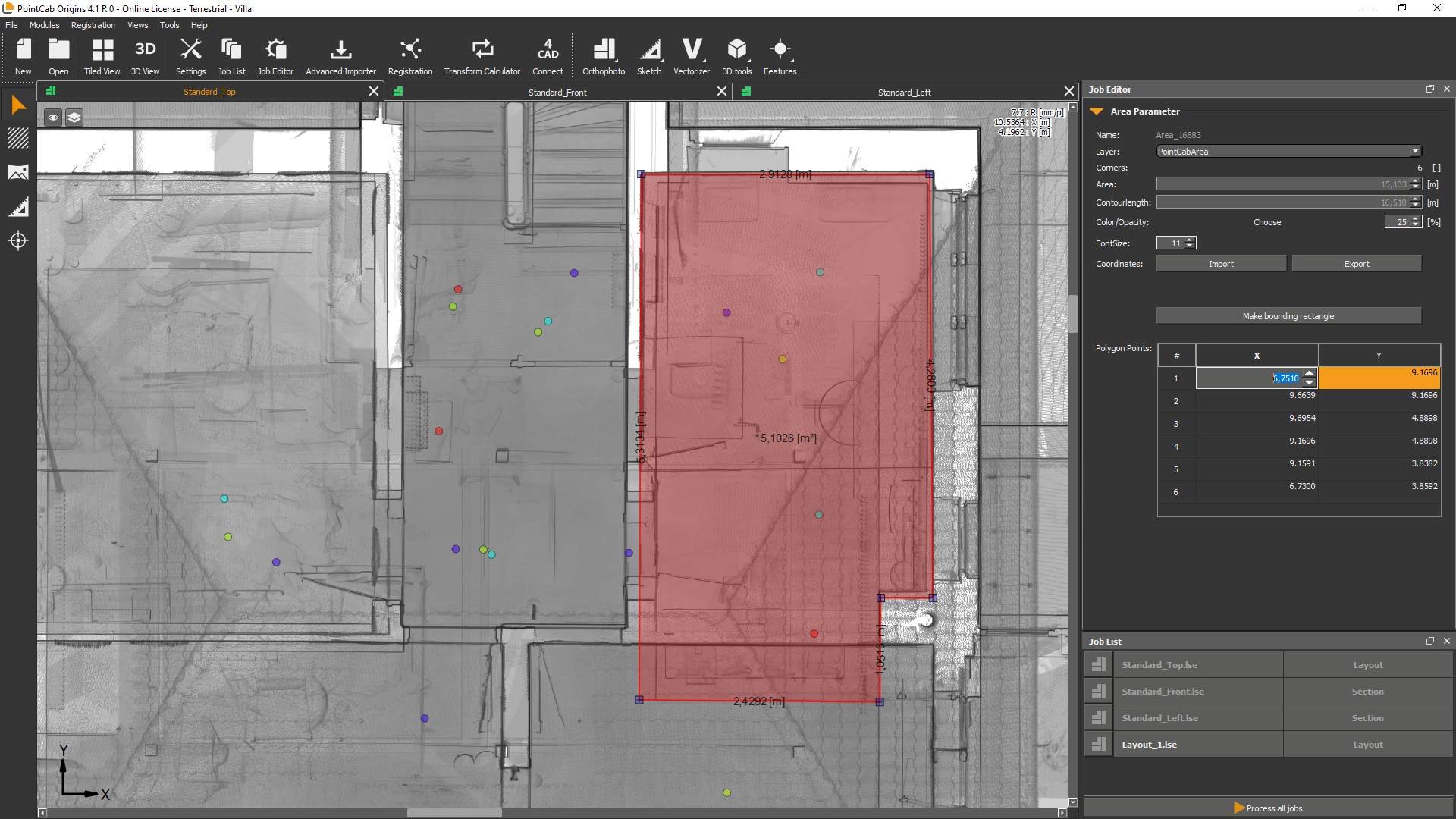
Polygon editor for area-based tools
What it’s for?
View and edit the coordinates of your polygon points in the job editor!
How it’s done:
When creating a surface the coordinates of the polygon points appear in the job editor and can be adjusted there. This affects all functions of the area tool and all functions that are related to areas: Merger, point cloud export, volume, and mesh.
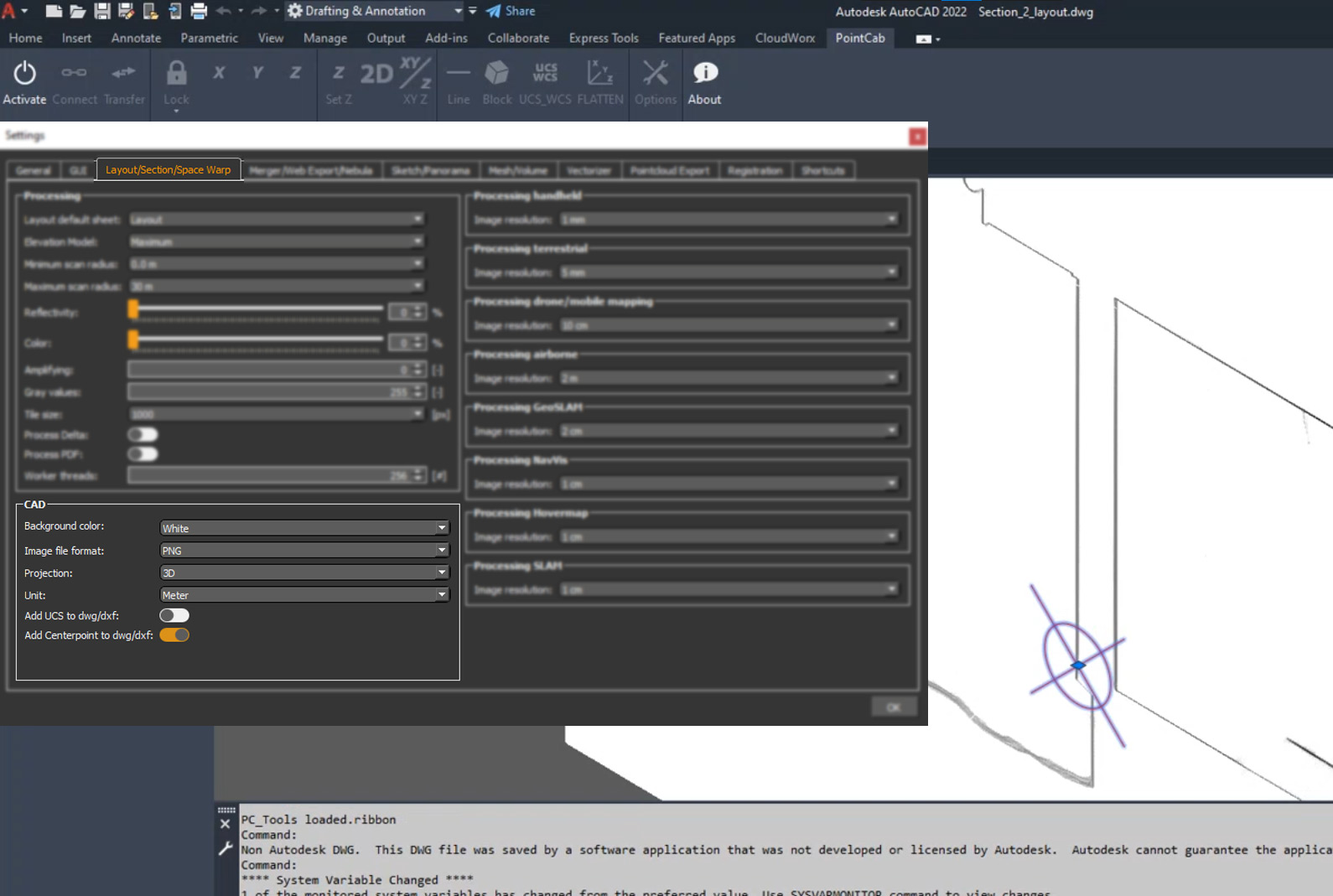
Export origin point of sections in .dwg (customer request) 💡
What it’s for?
When exporting a section, the center of the section is exported as an additional CAD element called “origin point”. This way the reference point is preserved and you are quickly able to restore it, in case you need it. (A crosshair will be displayed in AutoCAD)
How it’s done:
Go to Layout & Section Tool > Create Section > Settings > Layout/Section/Space Warp > CAD > Activate “Add Centerpoint to dwg/dxf” under “Option”.
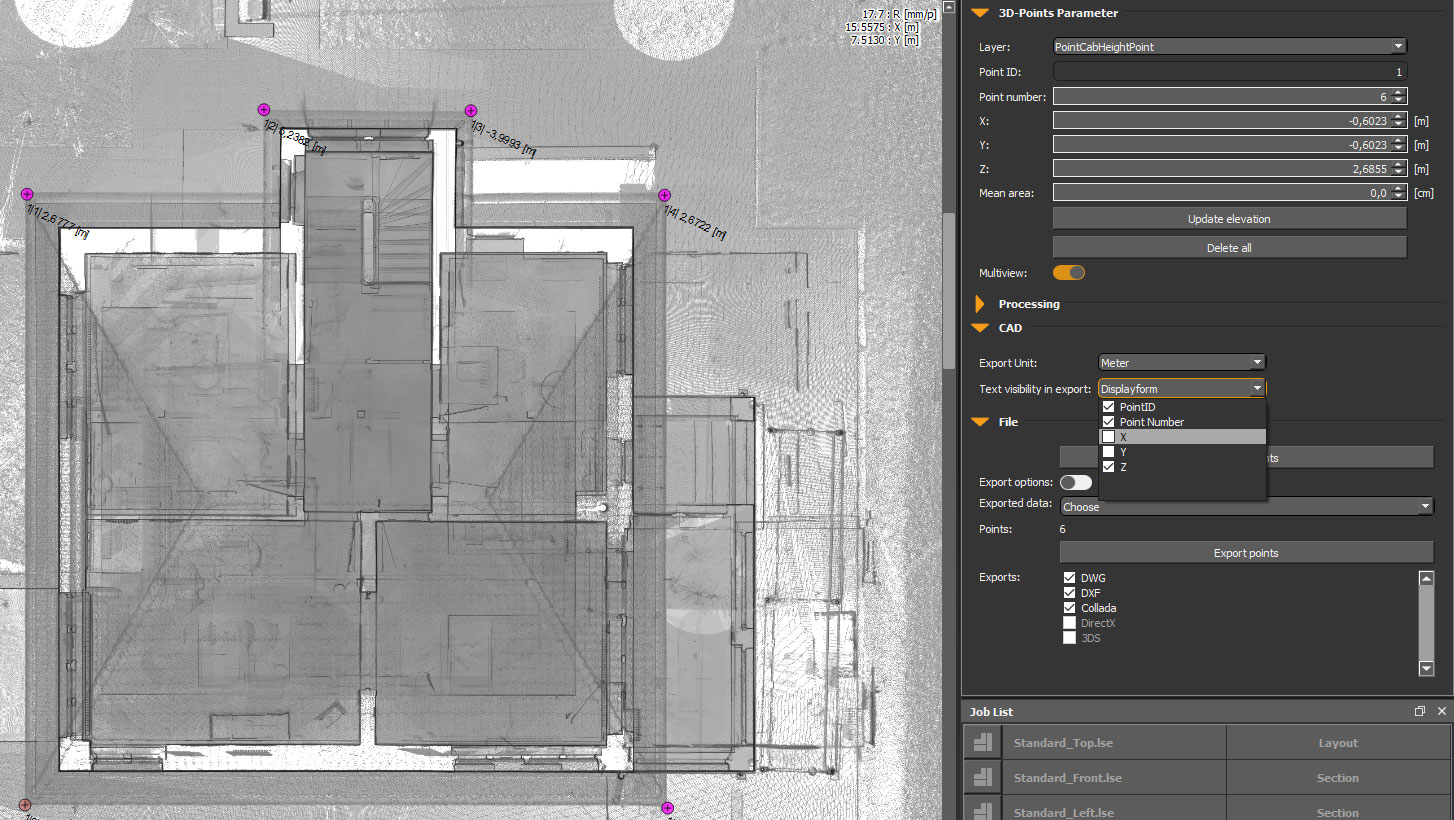
Customized 3D Point export to .dwg
What it’s for?
Now you can choose your preferred data format for exporting points to .dwg!
How it’s done:
In the Job Editor under “CAD” you can now find the “Text visibility in Export”. Here you can define where PointID, Point Number, and X, Y, Z information shall be exported to. When the 3D points are exported, the corresponding folder opens directly. Therefore right-clicking “show in folder” is no longer necessary. In the .dwg file, the selected information will be displayed next to the point. The same functionality is also available under the “File” tab in the Job Editor.
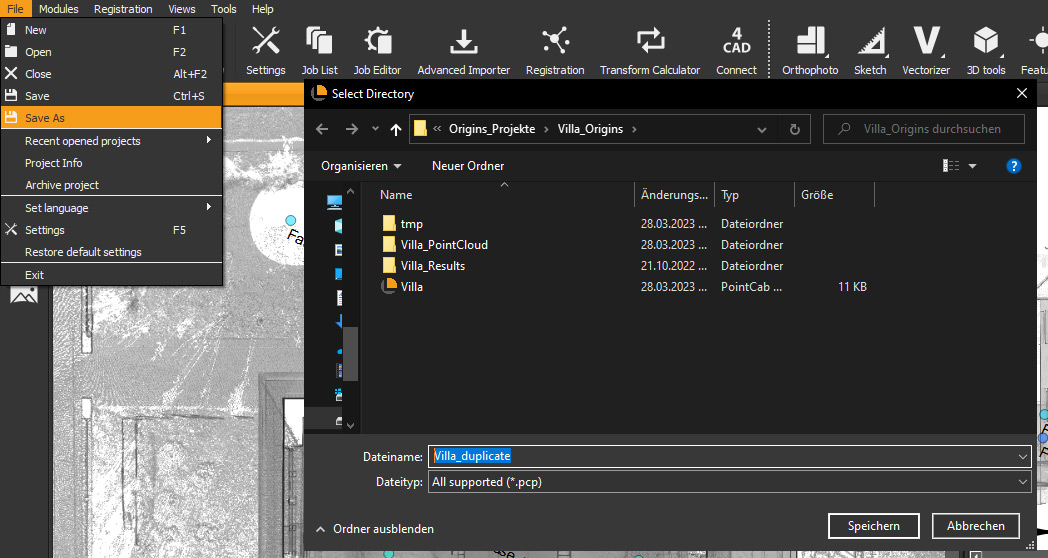
“Save as” Functionality to .pcp (PointCab Project)
What it’s for?
Finally, a new way to duplicate your project! Previously, you could only archive a project and then had to pack and unpack it again… These times are finally over!
How it’s done:
Just go to File > Save As: Origins saves a copy of your current project state in the background. Isn’t that great?
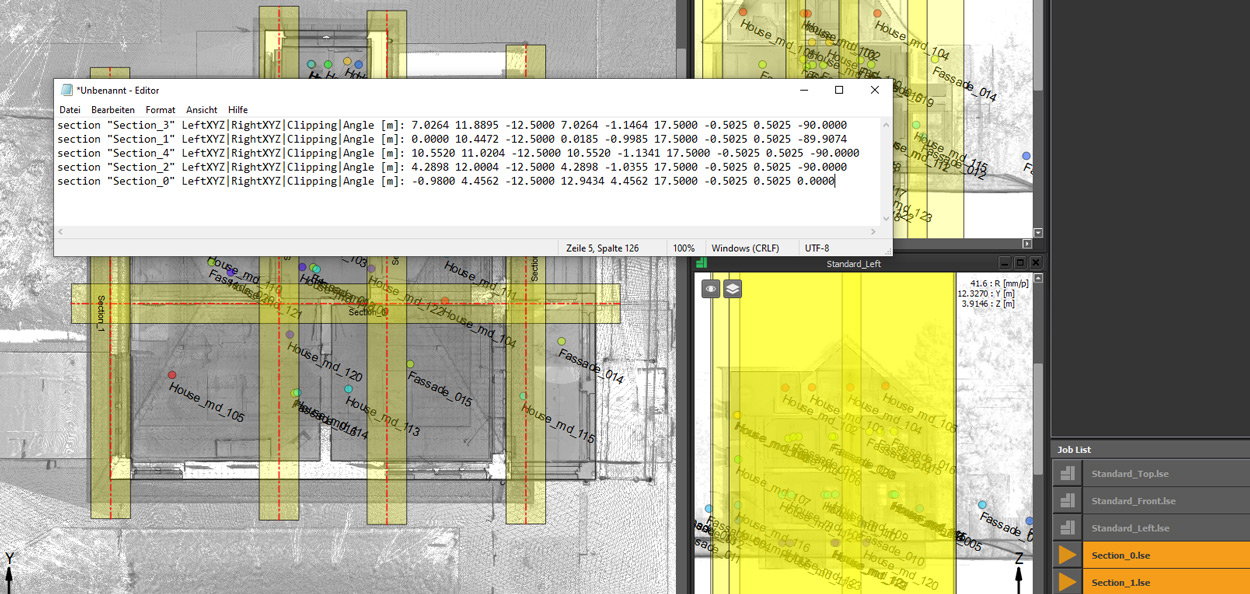
Export Orthophotos position (customer request) 💡
What it’s for?
Export the positions of several layouts with ease!
How it’s done:
Select all your layouts with the selection arrow or Ctrl + A, then copy them with Ctrl + C and simply paste them into your text editor. You will easily get all layouts with name and order Lefthandle | Righthandle | Center, as well as all 3D points.
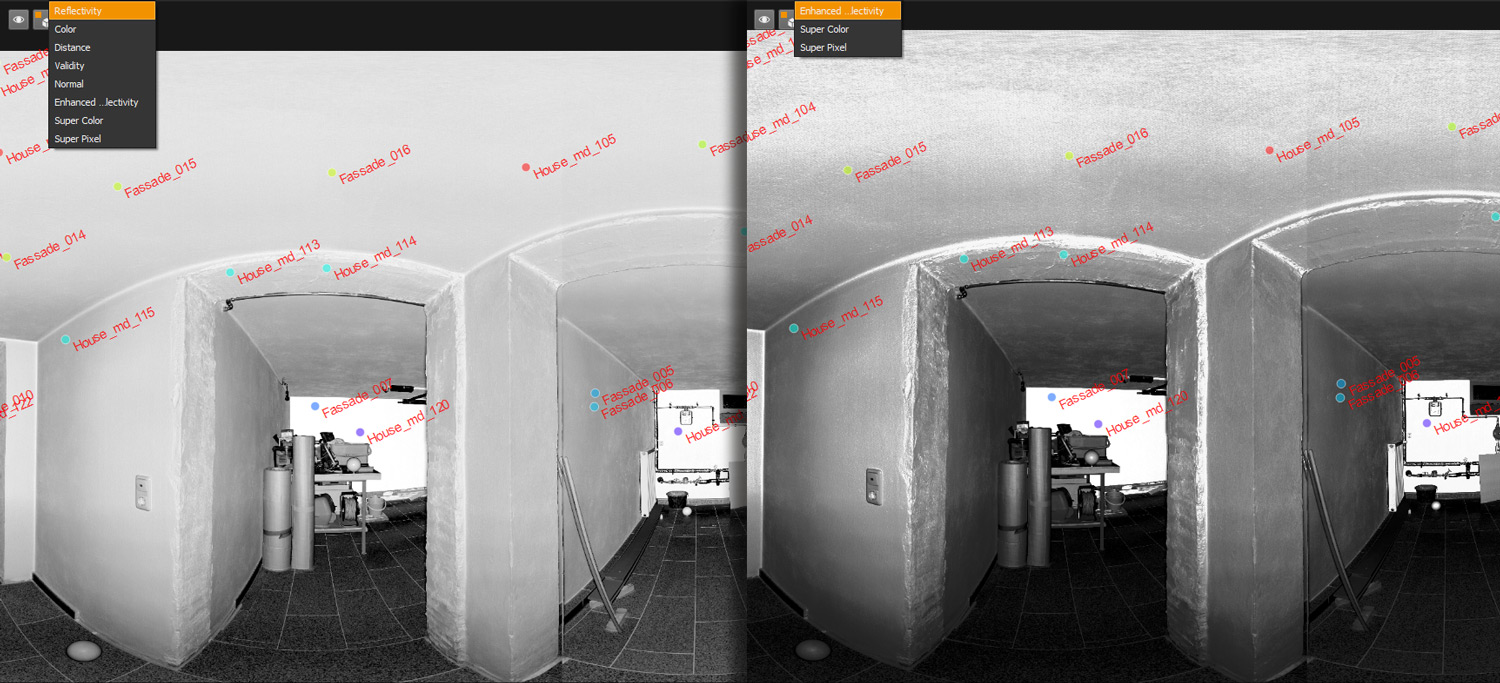
Sections with enhanced reflectivity
What it’s for?
The new option enhances the reflectivity in your panoramas and in sections!
How it’s done:
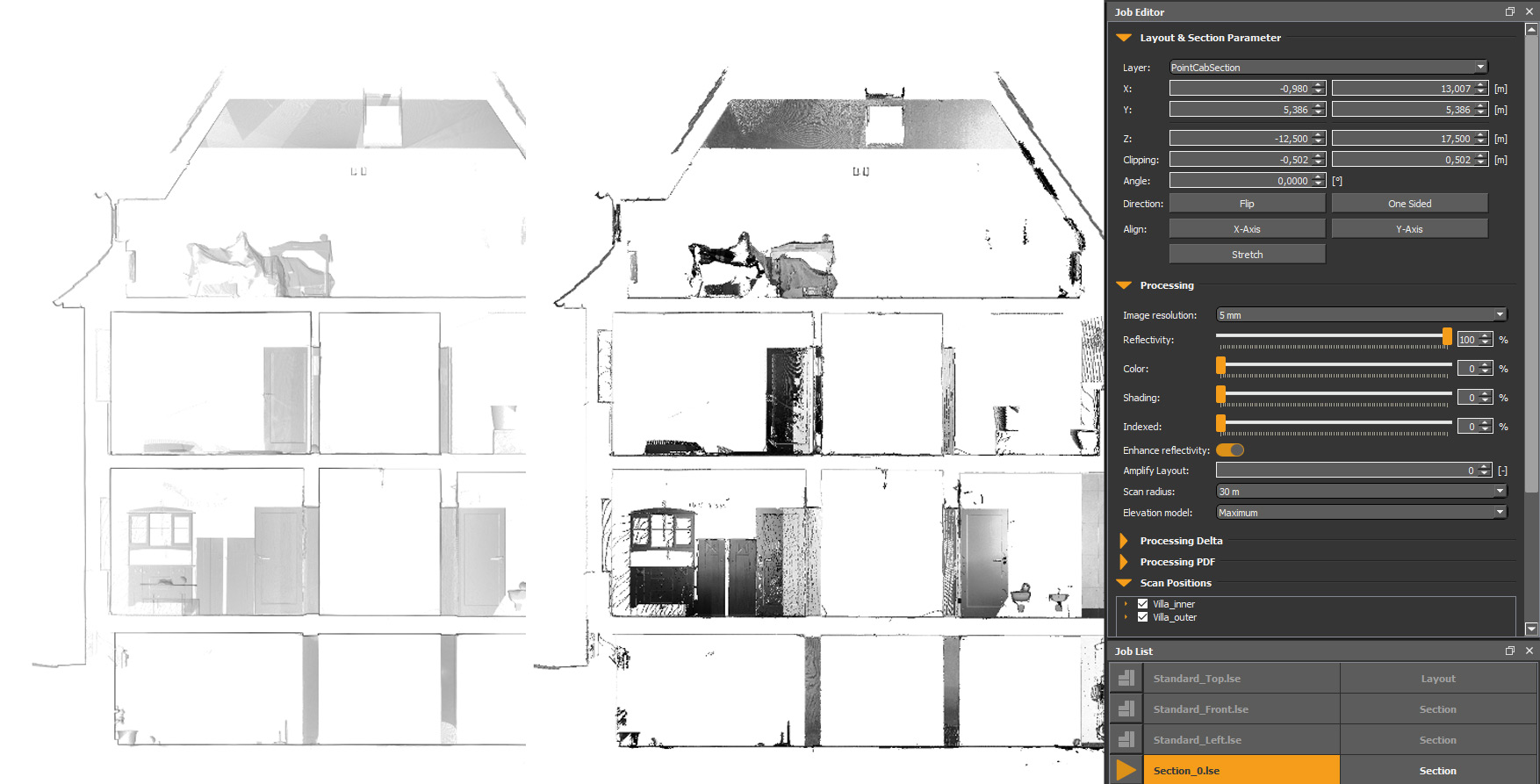
In the panoramas, there is a new sheet that enhances reflectivity. If the “Enhanced reflectivity” slider is checked, the reflectivity will be displayed with increased contrast. To use it for sections just create a new one and set the reflectivity to 100% in the Job Editor under “Processing” and activate the slider for “Enhanced Reflectivity”. Now calculate your job and the sheet with “Enhanced Reflectivity” is available. Lookin’ good, isn’t it?
Export all panoramas in different file formats
What it’s for?
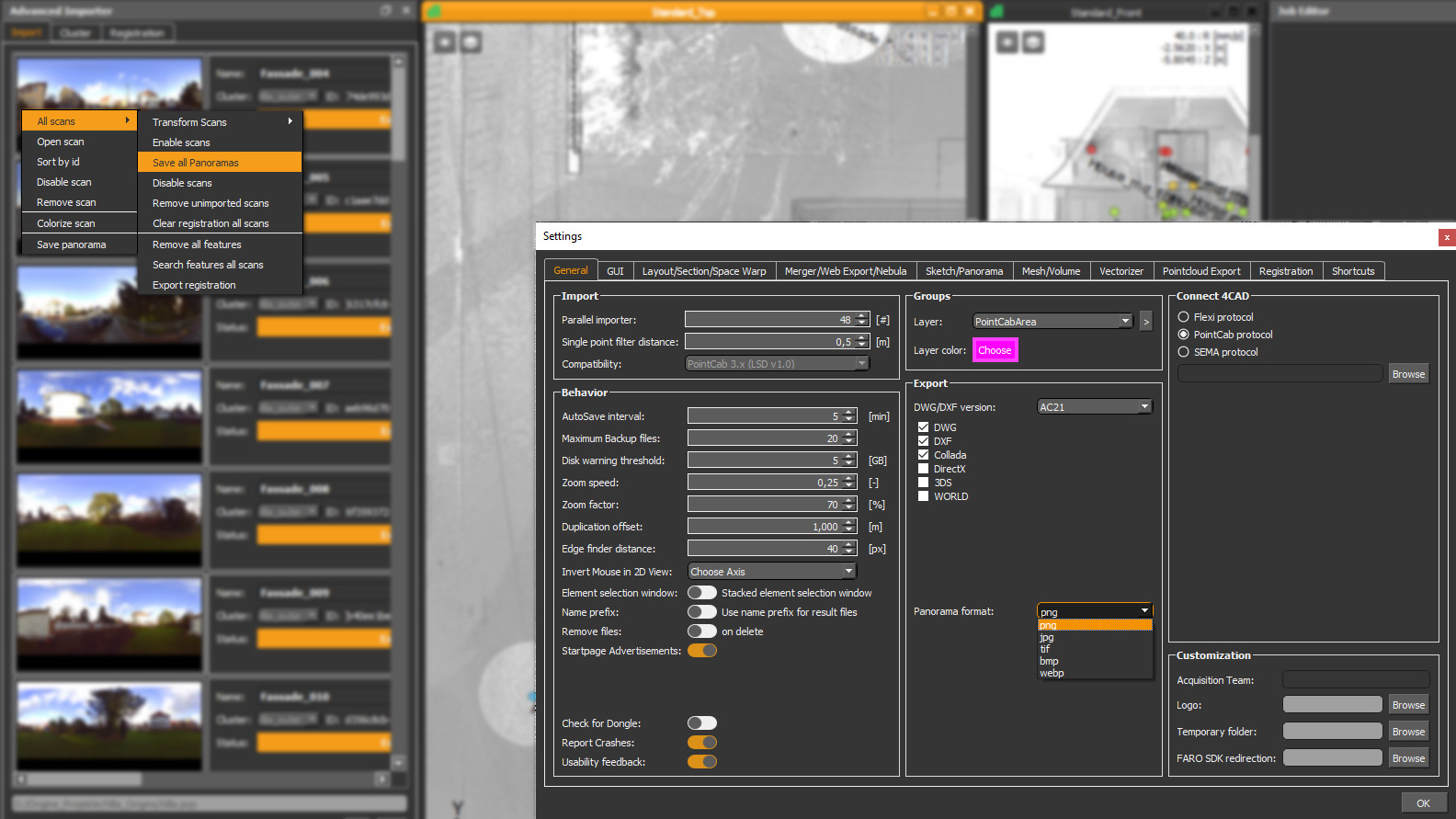
This new option helps you to convert your panoramas into your desired image file format. You can choose between png, jpg, tif, bmp, webp
How it’s done:
Before exporting the desired panoramas, choose your preferred format for exporting in the settings under General > Export > “Panorama format”.
Once that’s done, go to the Advanced Importer > “Import” tab: do a right click: select All scans > “Save all Panoramas” and export all panoramas in your preferred file formats!
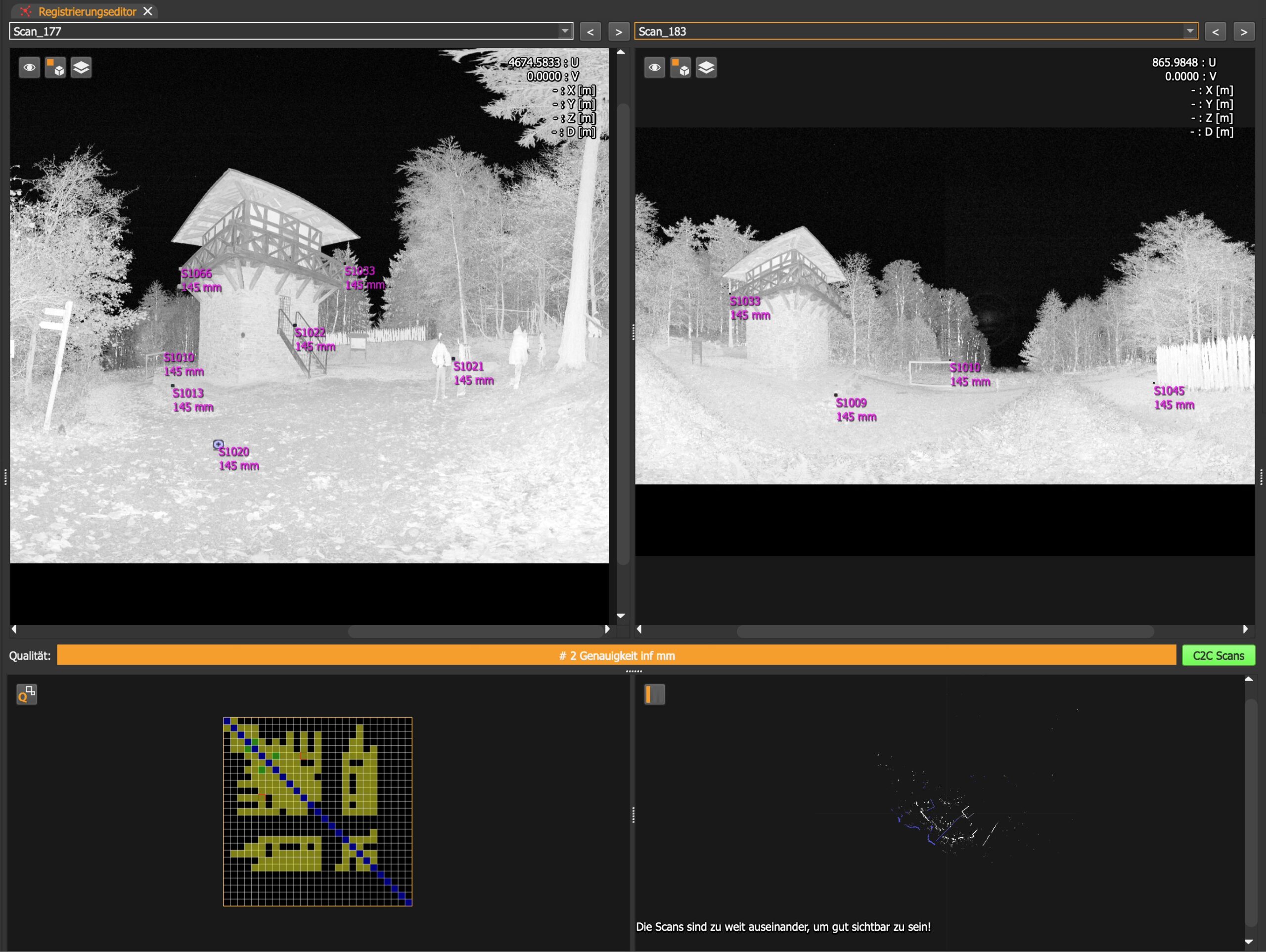
⚠️Cloud-to-Cloud (C2C) Test / Beta⚠️
What’s it about?
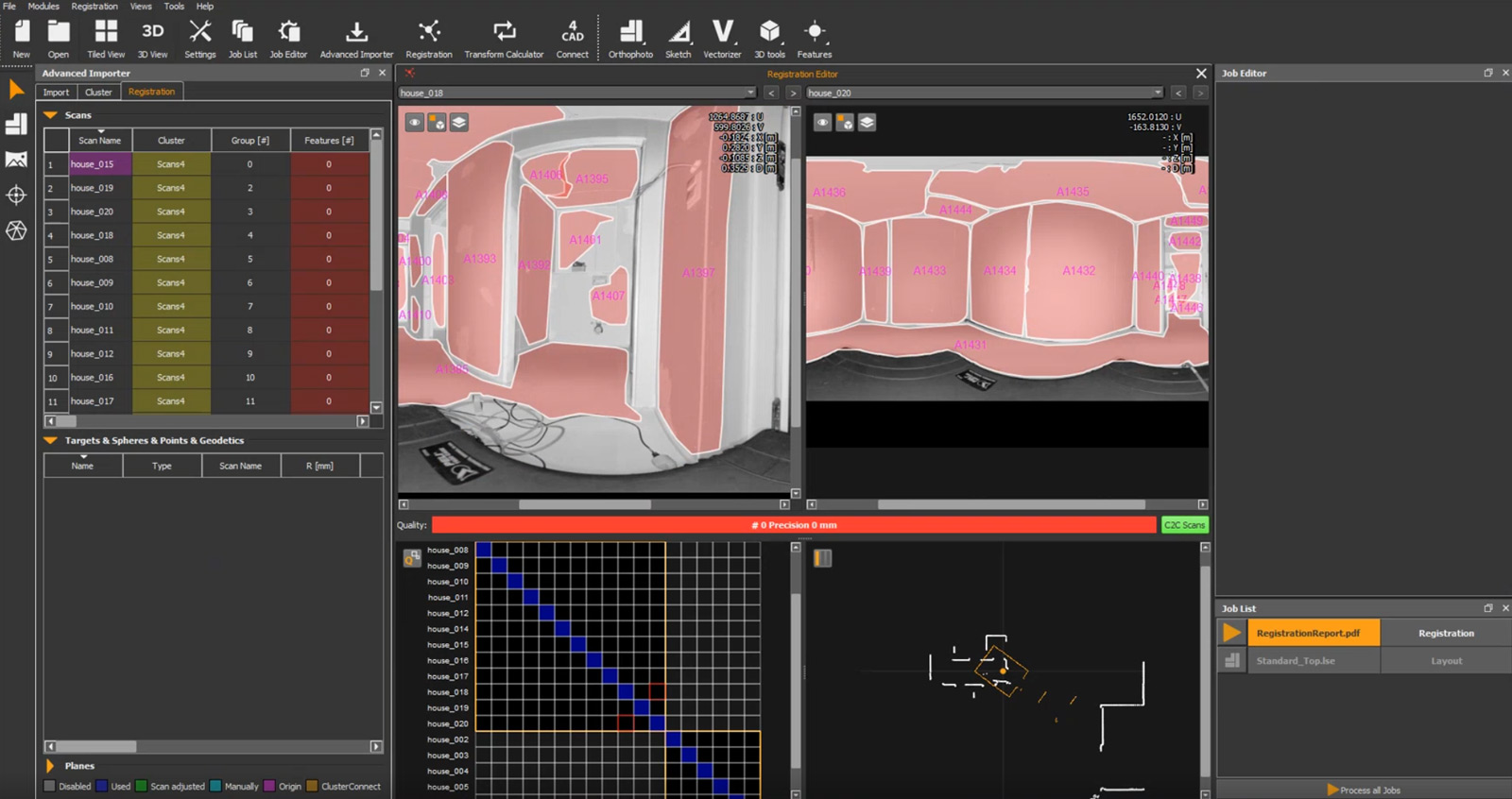
We intend to offer a full-fledged cloud-to-cloud (C2C) registration in Origins. For now, this is our first attempt to provide C2C in Origins 4.1.
Here’s what to keep in mind:
We explicitly don’t recommend using this C2C in its current form to register actual projects!
But we would like to encourage you to test our C2C beta and we’re excited about your experiences and feedback about it.
GENERAL IMPROVEMENTS
Shortcut Manager improvements
What it’s for?
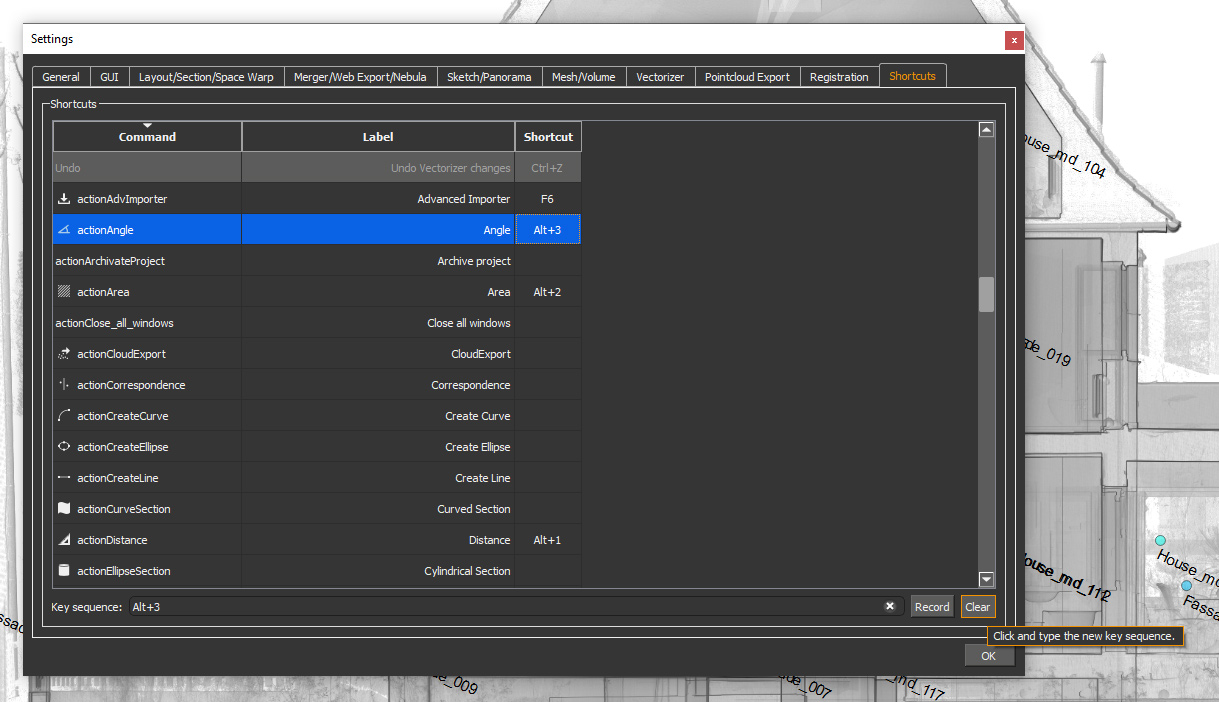
We have added a Clear-Button in the Shortcut Manager. Maybe just a little improvement for your user experience but we think you deserve it.
How it’s done:
Settings > Shortcuts: New “Clear Button” to delete user-defined shortcuts.
The “Record Button” can then be used to record as usual.
Customizable zoom speed
What it’s for?
Adjust the zoom speed in the 3D viewer the way you prefer it.
How it’s done:
Open the 3D Viewer and click on the Gear Icon in the upper left corner. Then you’ll be able to adjust your zoom speed in the “3D View Parameter” in the Job Editor. This setting can also be found under Settings > GUI > 3D Control > Zoom Speed
Advanced project information
What it’s for?
This handy feature keeps you on track with your project information!
How it’s done:
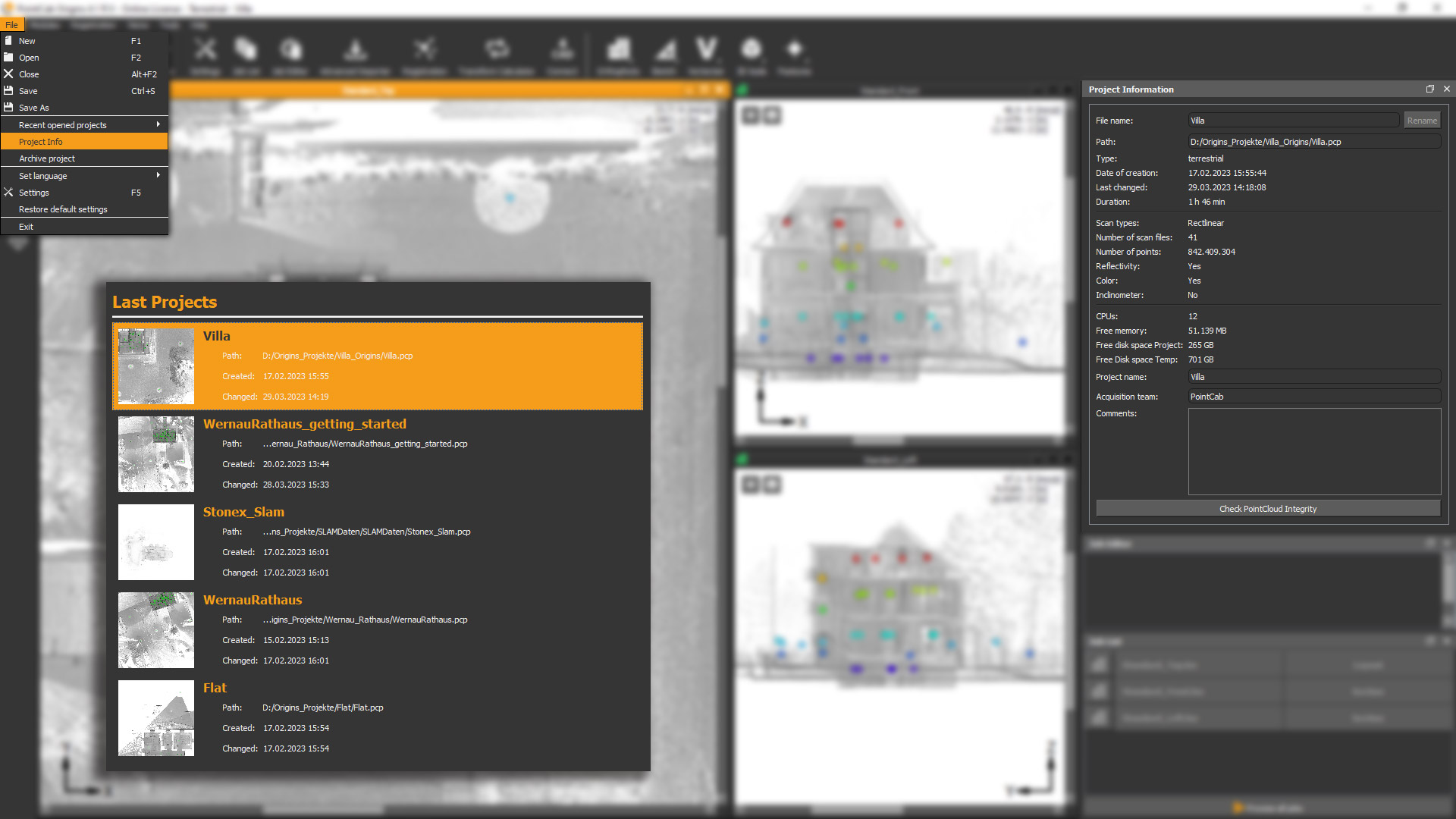
You might have noticed it already when opening Origins: in the Last Projects overview, more project details are now displayed!
Curious about more information? Just open your project and go to “File” > “Project Info”. Now you can view your “Project Information” above the Job Editor. Have a look at e.g. the creation date, date of last changes, total processing time, and much more!
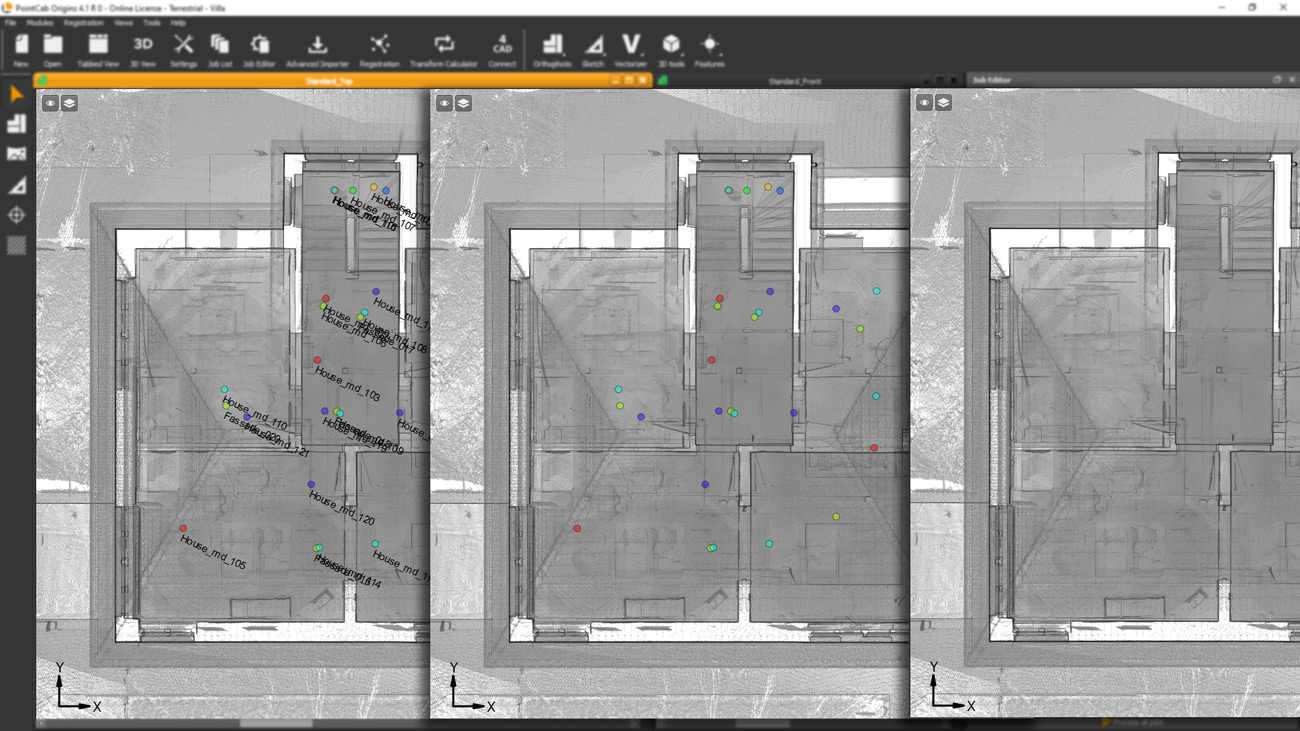
Layout center line visible in all standard views
Save into FARO project file (customer request) 💡
EXTENDED DATA FORMATS – IMPORT / EXPORT
FARO SDK/API update – Support of FARO Premium Scans
Fantastic news for all FARO Focus Premium users!
As of now, the scans can be imported from the Premium Scanner.
Import e57 files with panorama (for Mobile Mapping scan data)
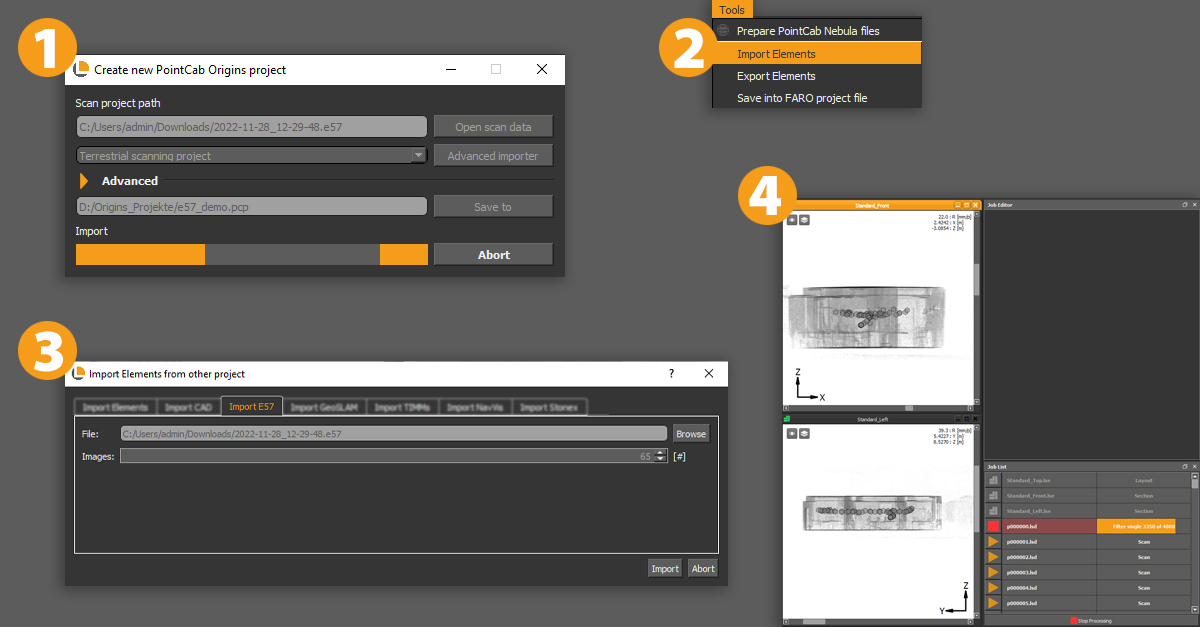
How it’s done with .e57 files:
- Create a new project and open your scan data. Select the .e57-file and save it to start importing your e57-file as a point cloud.
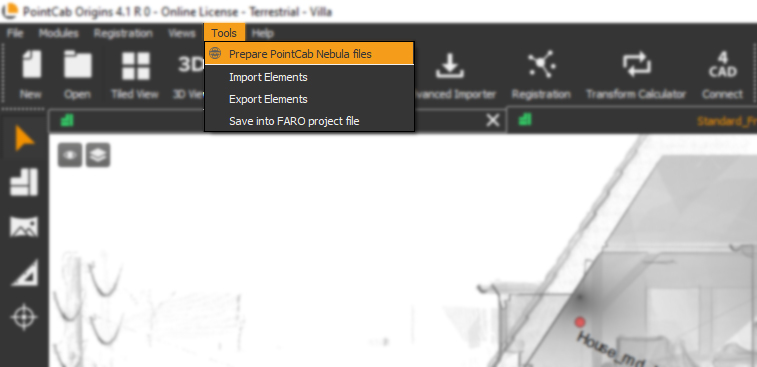
- Proceed to import the panoramas under “Tools” and click on “Import elements”
- Navigate to the “Import E57” tab and select the same file. There you can see how many panoramas are included. Click on import.
- Last step: simply calculate the panoramas in the job list.
How it’s done with Stonex files:
- Create a new project and open your Stonex data. Select the .las-file and save it to start importing your .las-file as a point cloud.
- After your Stonex point cloud has been successfully imported into Origins, go to “File” > “Import Elements”.
- Navigate to the “Import Stonex” tab and navigate to the location of your .txt file and press “Import”. Make sure that the option “Copy images to project” is activated.
- The panorama views appear as circles in your project and as jobs in the job list that need to be calculated. After Origins has processed the images, you can open them as usual by selecting the Panorama tool and clicking on the scan point in the standard views.
Please note:
The Stonex panoramas are just hemisphere panoramas (180 degrees) and therefore the point cloud cannot be back-projected onto them, which means that no measurements can be made. They are purely suitable for visualization purposes.
BUG FIXES
- Fix multiple transfer of 3D points through the 4CAD interface
- Fix SLAM Project type import parameters
- Fix import projects which contain symbols or ellipses
- Fix Auto Merger creation for Standard views
- Fix check for duplicates when importing geodetic points
- Fix resetting locked cluster position after repeating the registration
- Fix scan selection using a bounding box
- Fix 3D Points export column order
Conversion of a former mustard factory
USER STORY
As-Built Documentation for Conversion of Existing Buildings: Former Mustard Factory
The Challenge: No Existing Floor Plans and Time-Sensitive Planning
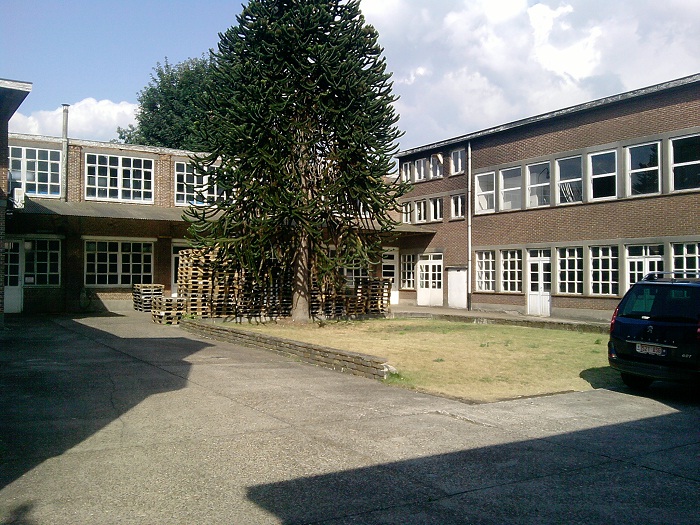
In this project, an old mustard factory was being converted into a residential building. The two-story, U-shaped structure contained former production rooms, storage areas and garages – but no current, reliable as-built plans were available for this complex task. 3D laser scanning provided the precise documentation needed for planning and design.
Converting an industrial building into residential space requires accurate knowledge of existing conditions. Without updated plans, planners and engineers risk costly errors during design and construction. In this case, the goal was to produce detailed floor plans and sections as CAD deliverables for the planning office – efficiently and within a short timeframe.
Capturing the Existing Building: Fast and Complete 3D Laser Scanning
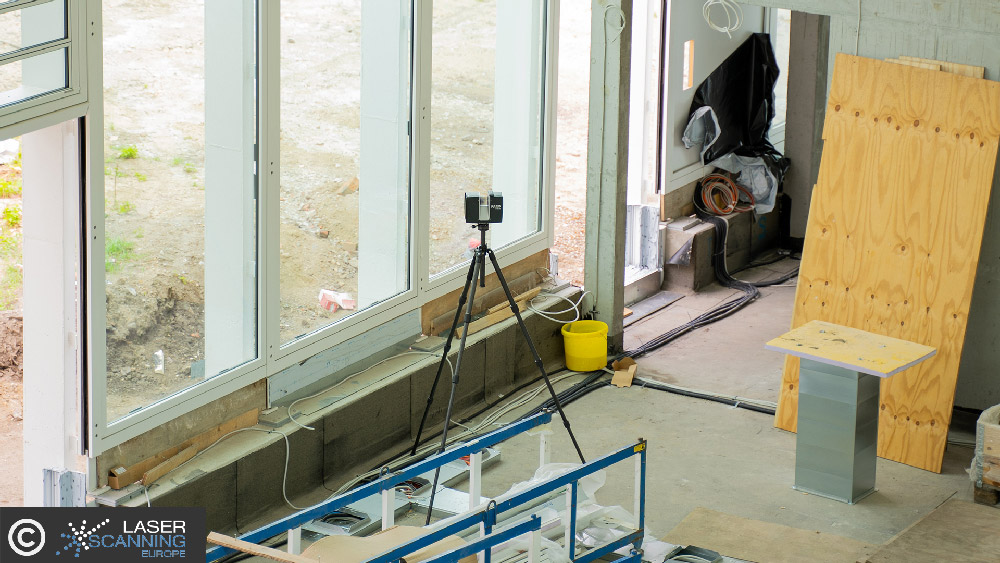
The entire building was documented using 3D laser scanning within half a day. A total of 30 individual scans were carried out, capturing all relevant rooms, walls, openings and structural elements.
This approach delivered a complete and detailed point cloud representing the actual condition of the building – an essential foundation when converting industrial structures into residential use.
From Point Cloud to CAD Plans: Efficient Evaluation with PointCab Origins
After data acquisition, the point cloud was evaluated using PointCab Origins. From the scan data, the required deliverables were derived efficiently:
- floor plans,
- cross sections,
- and scaled, CAD-ready drawings.
The generated data could be imported directly into the customer’s CAD system and used for further planning steps without additional re-measurement or manual reconstruction.
Planning Benefits and Project Outcomes
The complete evaluation process – from raw scan data to exportable plans took approximately two hours.
Based on the generated plans, the investment volume for the conversion could be assessed quickly and reliably. The resulting CAD data supported:
- preliminary and design planning,
- detailed execution planning,
- and visualizations for residential marketing and exposés.
This workflow provided a solid digital foundation for all subsequent project phases.
Want to keep up with the latest pointCab news?
Then follow us on Social Media or subcribe to our newsletter!
Acquisition of a limestone crushing plant
USER STORY
As-Built Documentation of a Limestone Crushing Plant Using 3D Laser Scanning
Project Overview: Accurate Data for Industrial Plant Expansion
The As-Built Documentation of Industrial Facilities is an increasingly important application in surveying. In this project, the planning of a plant expansion was commissioned. Specifically, it involved a limestone crushing plant at a cement factory in the Middle East. ThyssenKrupp Fördertechnik GmbH used 3D laser scanning with PointCab Origins to capture the existing facility in detail. The goal was to compare the laser scan data with an existing 3D CAD model and create a reliable basis for planning the upcoming plant extension—something that would not have been feasible without precise as-built documentation.
3D Laser Scanning for Efficient and Non-Disruptive Data Capture
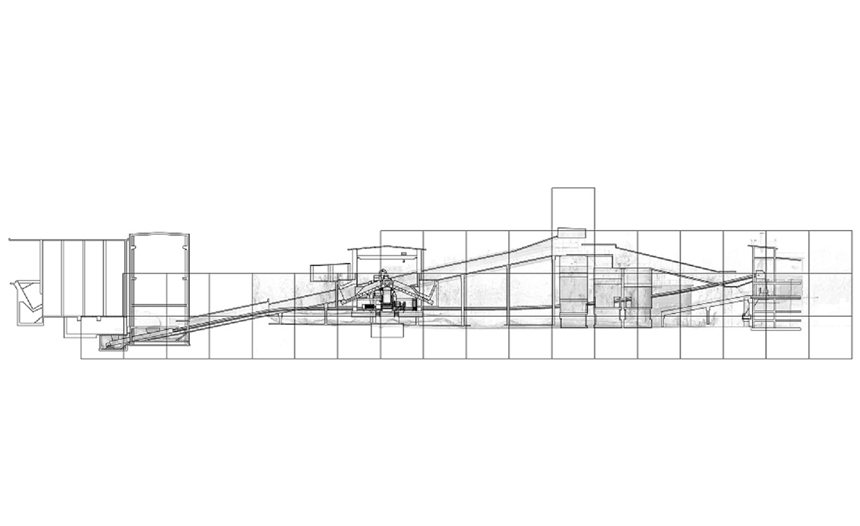
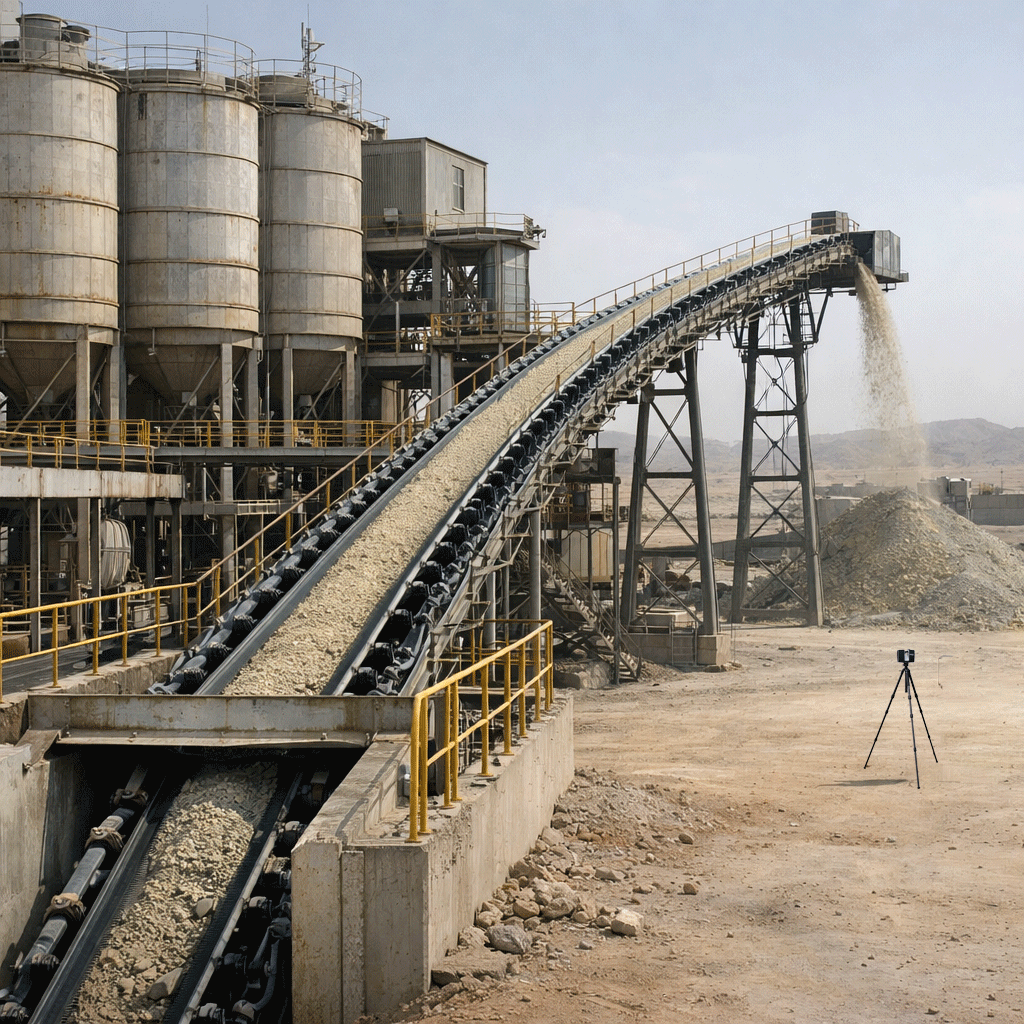
A FARO laser scanner was used to capture a conveyor belt system approximately 160 m in length, starting underground and ending at a discharge point about six metres above ground level. The conveyor passes through several silos and multiple height levels, making conventional measurement methods inefficient and time-consuming.
Using 3D laser scanning allowed the system to be documented with minimal disruption to ongoing operations:
- Data acquisition was carried out over three days.
- The conveyor belt needed to be stopped for only two hours in total.
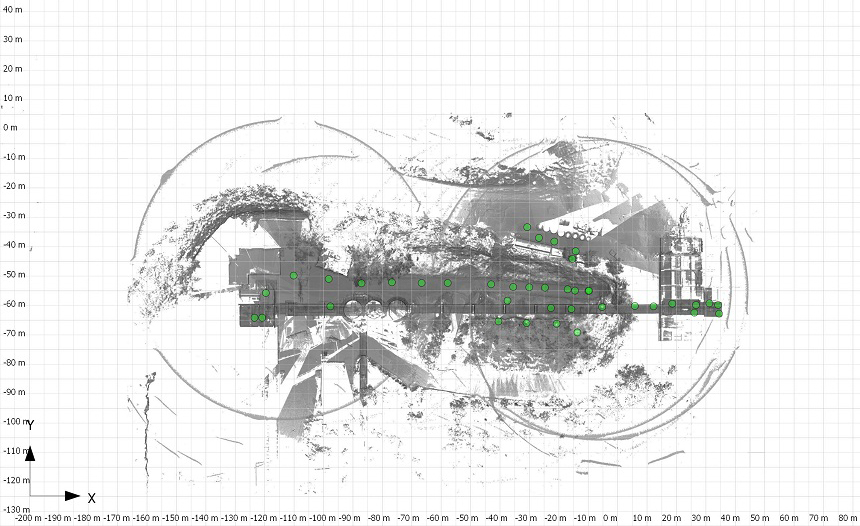
- 40 individual scans were captured and registered and evaluated directly on site using PointCab Origins.
This ensured complete coverage of the facility and eliminated the need for repeat site visits or additional shutdowns.
Processing the Point Cloud and AutoCAD
The sections and evaluations generated in PointCab Origins formed the basis for further planning and design.
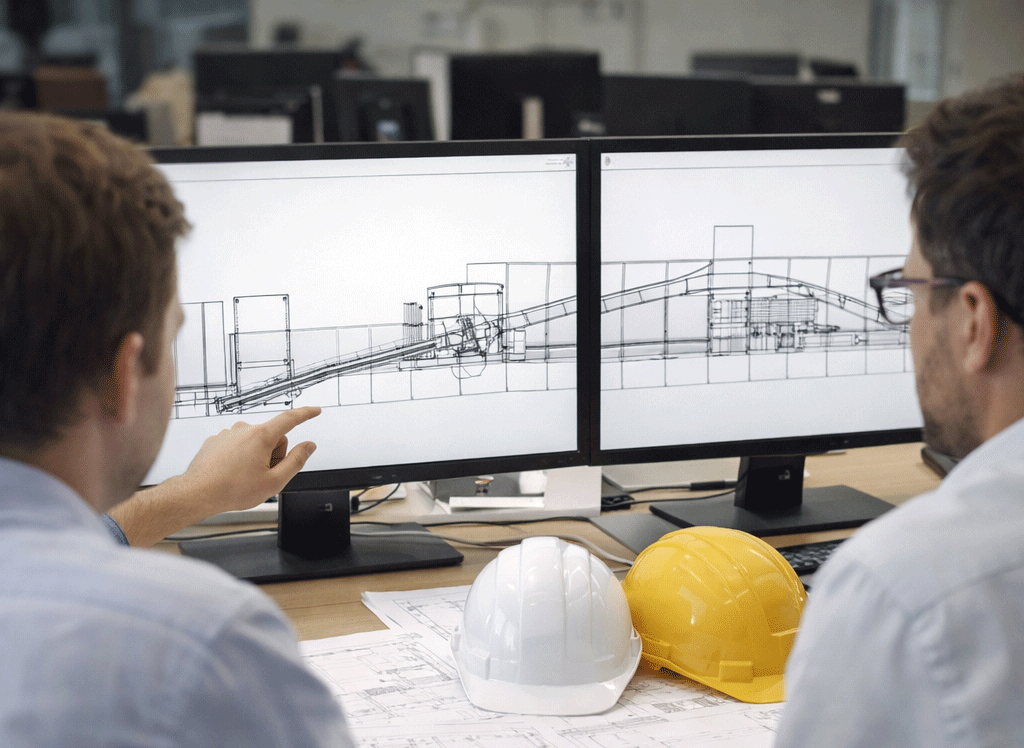
After on-site registration, the processed point cloud data was transferred into AutoCAD for continued CAD work. This enabled planners and engineers to work directly with accurate, real-world geometry and align the planned plant expansion with the existing structure.
Benefits of the Workflow As-Built Documentation of Industrial Facilities
This project highlights the advantages of combining 3D laser scanning with point cloud processing for industrial plants:
- Efficiency: Large and complex plant components can be captured quickly with minimal downtime.
- Data accuracy: The point cloud reflects the actual condition of the facility with high precision.
- Planning reliability: Accurate measurements help prevent clashes and design errors during plant expansion.
- Seamless CAD workflow: Results integrate smoothly into standard CAD environments such as AutoCAD.
For industrial facilities operating under tight production schedules, this approach provides a reliable and practical foundation for modification and expansion projects.
Want to keep up with the latest pointCab news?
Then follow us on Social Media or subcribe to our newsletter!
Facade elevation of a listed industrial building
USER STORY
Facade Elevation of a Listed Industrial Building: Precise 3D Survey for Renovation Planning
Requirements: Facade Documentation of Listed Building
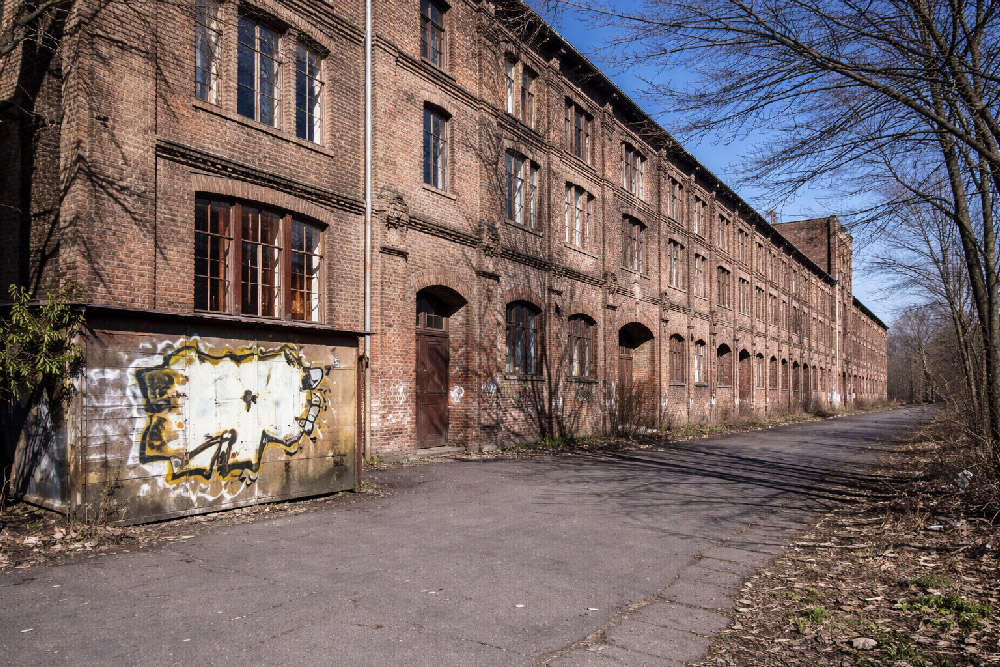
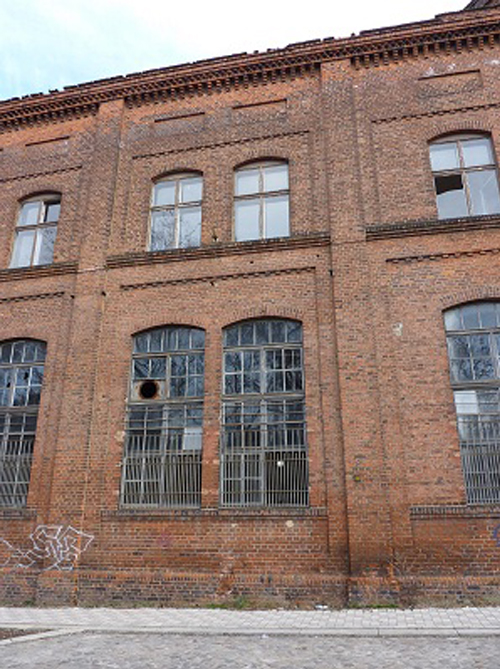
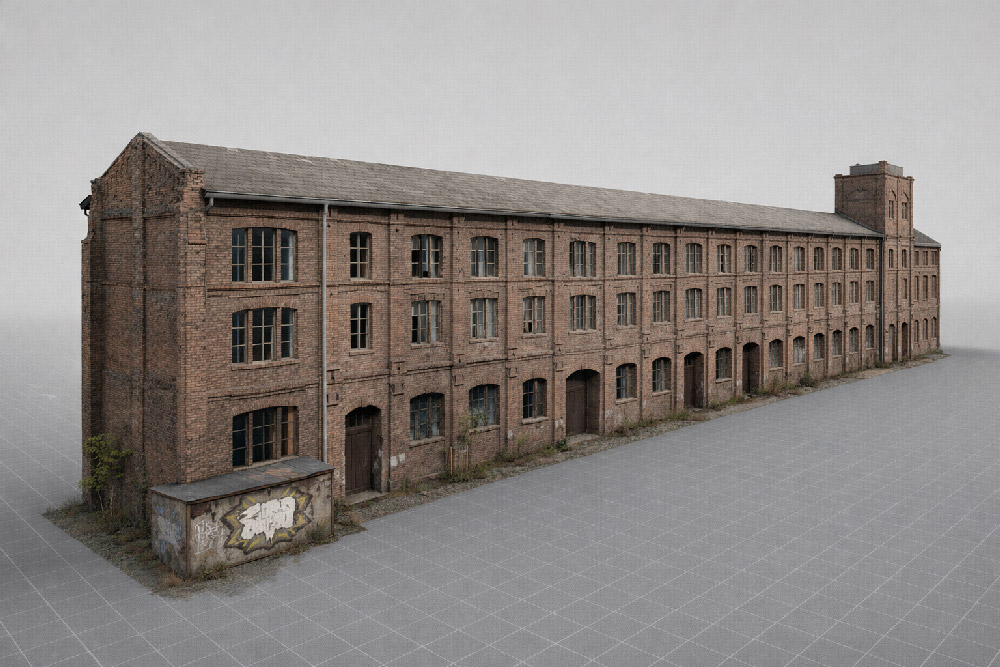
In Magdeburg, a historic industrial building subject to preservation orders was undergoing conversion into residential loft apartments. To comply with heritage requirements and support renovation planning, highly accurate, true-to-scale documentation of the building’s facades was essential. Traditional measurement approaches were not feasible due to the narrow working space and the structure’s height, so a 3D laser scanning survey was commissioned. The 3D laser scanning survey, as well as the processing and modeling of the point cloud data was carried out by Laserscanning Europe.
Challenges of Capturing a Listed Facade
The building’s complex geometry presented multiple challenges:
- The facades reach up to 17 m in height, making direct manual measurement risky and limited by space.
- The east facade features multiple offsets and sloping sections, requiring detailed mapping to capture elements such as window surrounds and wall protrusions.
- As a listed structure, all renovations must align with heritage preservation requirements, which demand accurate documentation of existing conditions before design can proceed.
These conditions made non-contact 3D laser scanning the only practical method to achieve comprehensive and precise data.
Survey Execution: 25 Scan Positions and Efficient Data Capture
The team performed a total of 25 laser scanner setups across the three principal facades, covering a facade area of 1,720 m². Only one surveyor was needed on site, and the total scanning time was approximately 5 hours.
The result was a dense and complete point cloud representing all facade details – including irregularities and features that are critical for both preservation and renovation planning.
From Point Cloud to Digital Plans Using PointCab Origins and Geograf
Once the laser scanning was completed, the raw point cloud data was processed with PointCab Origins:
- True-to-scale orthophotos were generated automatically.
- The orthophotos and extracted measurements were imported into the CAD system Geograf within one hour.
- Detailed 2D plans, including facade drawings and crack documentation, were created at a 1:50 scale.
This workflow enabled architects and engineers to immediately begin modeling and detailed planning for renovation and conversion. The CAD deliverables supported both the artistic design and the technical compliance needed for a listed building.
Why Detailed Facade Documentation Matters for Preservation Projects
For any structure under heritage protection, understanding the existing condition – especially at high resolution – is vital:
- Preservation orders require that original characteristics be respected in renovation.
- Irregularities (cracks, offsets, sloping segments) must be precisely recorded before any intervention.
- A digital record supports historical documentation and prevents speculative or inaccurate reconstruction.
By using 3D laser scanning and rapid orthophoto generation, the project team not only met the strict accuracy requirements but also sped up the planning process, saving time and reducing risk during subsequent project phases.
Want to keep up with the latest pointCab news?
Then follow us on Social Media or subcribe to our newsletter!
Surveying Dunelm House
USER STORY
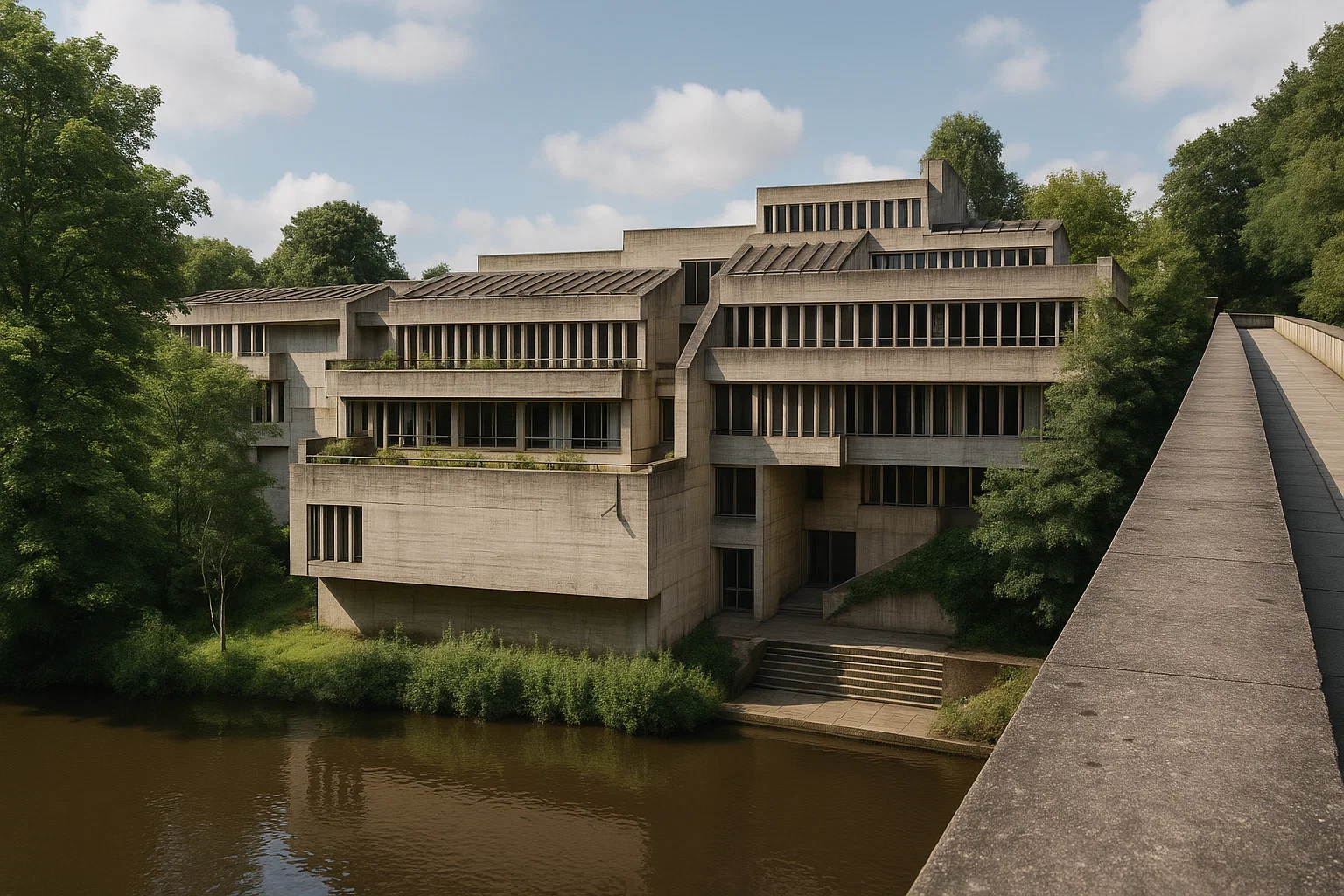
Surveying Dunelm House – home of the Durham Univerity Students' Union (DSU)
Dunelm House: Why a Precise 3D Survey Was Needed
Dunelm House (1966) is Durham University’s well-known students’ union building. Designed in the post-war modernist style, it sits directly on the steep banks of the River Wear. Furthermore, it is connected to the equally iconic Kingsgate Bridge.
The structure is characterized by exposed concrete and terraced floor levels. A multi-angled, irregular roofscape follows the natural slope of the riverbank. This bold design makes Dunelm House architecturally significant – and challenging to measure.
When leaks appeared across several roof areas, a detailed digital survey was needed. The aim was to document the current condition and guide the renovation.
The Challenge: Complex Roof and Difficult Site Conditions
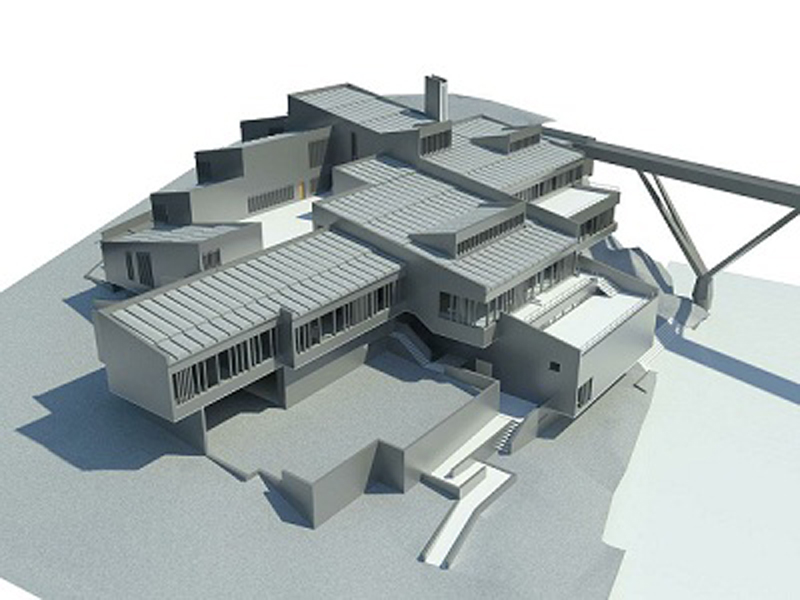
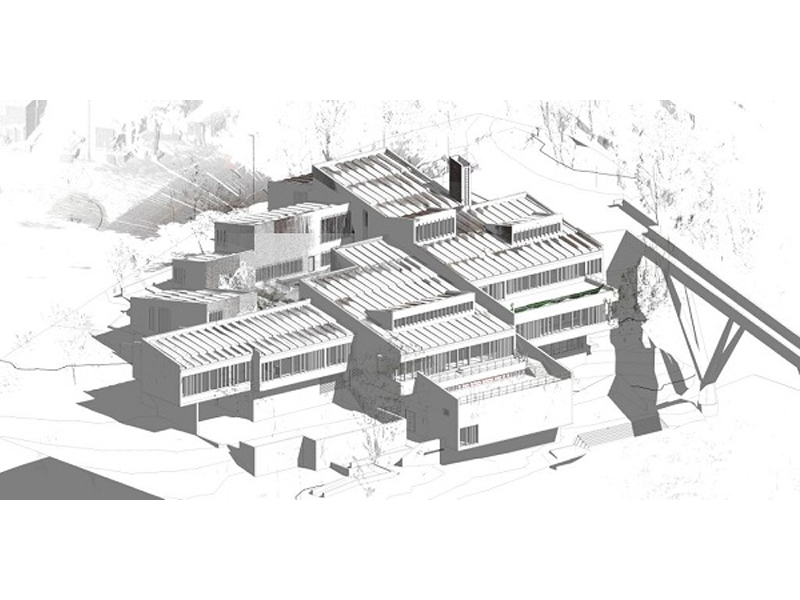
The student building’s roof consists of intersecting levels, changing slopes, and unconventional angles. Combined with its sloping riverside location, this makes traditional measurement methods unreliable and slow.
To capture the structure accurately and efficiently, the project required a modern surveying approach capable of documenting every plane and surface with precision.
How the Survey Was Completed: Laser Scanning + GPS
The survey was carried out by Bury Associates Ltd using two FARO Focus3D laser scanners. To record the terrain and ensure accurate referencing across the entire site, the team also used total stations and GPS equipment.
This hybrid surveying method made it possible to capture:
- the full exterior geometry of Dunelm House,
- its complex multi-level roof structures,
- and high-precision topographic context along the River Wear.
The result was a detailed point cloud covering the entire building and its surroundings.
From Point Cloud to 3D Model: Deliverables in Four Days
After the scanning process, the data was processed using PointCab Origins, which enabled the team to deliver complete documentation in just four days.
The deliverables included:
- orthophotos,
- 2D floor plans,
- sections and elevations,
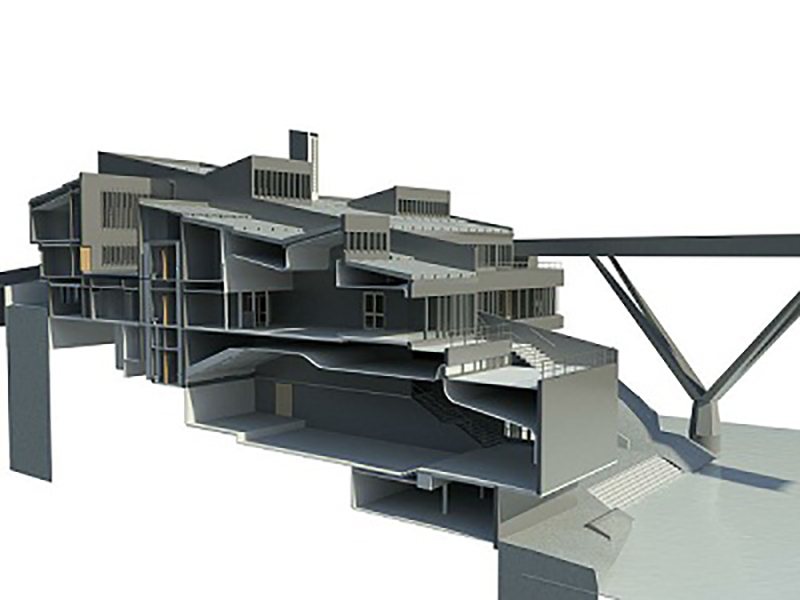
- and a full 3D Revit model created from the processed Origins data.
By exporting PointCab’s results into Autodesk Revit, the project team gained a BIM-ready model with the accuracy needed to analyse the leaking roof and plan the renovation.
How the Digital Survey Supports the Renovation Process
The Dunelm House project shows how 3D laser scanning, precise site measurement, and point cloud processing can deliver fast, reliable results — even for buildings with complex shapes and challenging site conditions.
With the combination of FARO scanners, survey instruments, and PointCab Origins for evaluation, Bury Associates delivered a complete set of renovation-ready outputs, including a detailed Revit model.
This provided architects and engineers with a solid digital foundation for repairing and preserving one of Durham’s most distinctive architectural landmarks.
Want to keep up with the latest pointCab news?
Then follow us on Social Media or subcribe to our newsletter!
As-built documentation of an old house
USER STORY
As-built documentation of an old house in Switzerland
Contents
As-Built Documentation of an Old House: Why a Complete 3D Laser Scan Was Essential
Missing Plans, Irregular Geometry, and the Need for Precision
Survey: Faro Photon 120, Faro Scene, and Efficient On-Site Work
Processing the Point Cloud: Fast Extraction of Plans and Sections
What This Case Study Demonstrates
As-Built Documentation of an Old House: Why a Complete 3D Laser Scan Was Essential
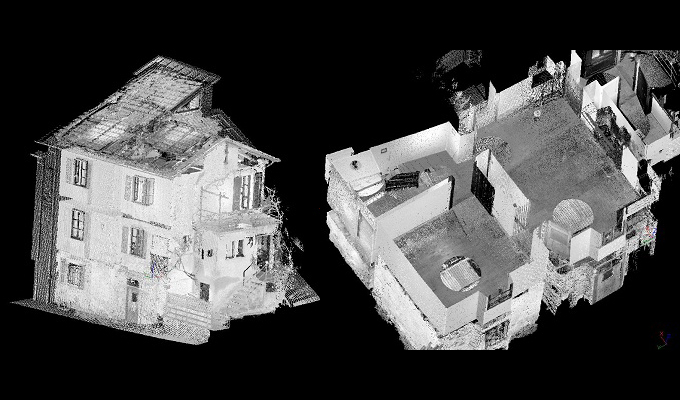
An old residential building in a village in the Swiss canton of Ticino lacked reliable, up-to-date building plans. To prepare renovation and restoration work, the engineering firm Geomatica Righitto (Lugano, Switzerland) was commissioned to do a full 3D as-built documentation.
Traditional plans were missing or outdated, and the building required precise measurements to support planning in CAD and BIM software.
Missing Plans, Irregular Geometry, and the Need for Precision
Older buildings rarely follow perfectly straight lines or standardized geometries. Over decades – or even centuries – walls may shift, floors may sag, and angles deviate from 90 degrees.
This means: assumptions based on symmetry or “standard” geometry can be highly misleading.
For renovation work, especially structural or restorative interventions, accurate data is crucial. Because no reliable plans existed for this house and its geometry was visibly irregular, a precise and complete measurement was essential, making 3D laser scanning the ideal method.
Survey: Faro Photon 120, Faro Scene, and Efficient On-Site Work
Geomatica Righitto used a FARO Photon 120 laser scanner to capture the entire building, including:
- three façades,
- the basement,
- the roof,
- and all four floors.
In total:
- 29 scans,
- 6 hours on site,
- 3 survey specialists.
All scans were registered and merged in FARO Scene, ensuring correct alignment and a unified, consistent point cloud.
This point cloud became the complete digital representation of the building, including all the irregularities typical of older structures.
Processing the Point Cloud: Fast Extraction of Plans and Sections
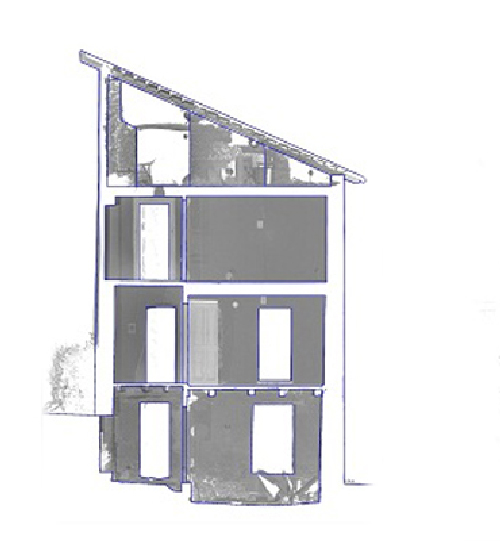
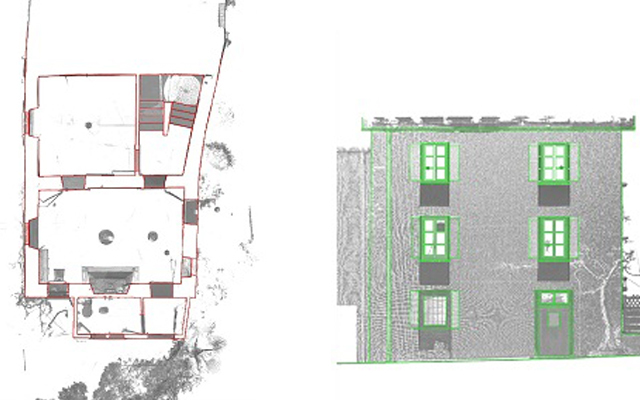
Once the unified point cloud was ready, Geomatica Righitto used PointCab Origins to extract essential architectural outputs:
- 4 floor plans
- 3 façade plans
- 20 building sections
- Orthophotos for façades and interior walls
These automated extractions significantly reduced manual drafting work.
The final drawings — both as-built documentation and renovation plans — were delivered in a CAD/BIM-ready format for use in Archicad.
The entire processing workflow, including preparation for delivery, took about 8 hours.
What This Case Study Demonstrates
This project shows how even older buildings with irregular geometry and missing documentation can be comprehensively captured. Old buildings are rarely dimensionally perfect, but laser scanning captures reality exactly as it is, and the resulting point cloud becomes a trusted digital baseline.
The combination of FARO Photon 120, FARO Scene, and PointCab Origins enabled Geomatica Righitto to create reliable plans quickly – giving architects and engineers the confidence they need to design renovations and restoration work effectively.
Want to keep up with the latest pointCab news?
Then follow us on Social Media or subcribe to our newsletter!
Renovation of an old farmhouse
USER STORY
As-Built Documentation for Renovation Projects – 3D Laser Scanning of an Old Farmhouse
Project Overview: Precise Survey for Full Renovation Planning
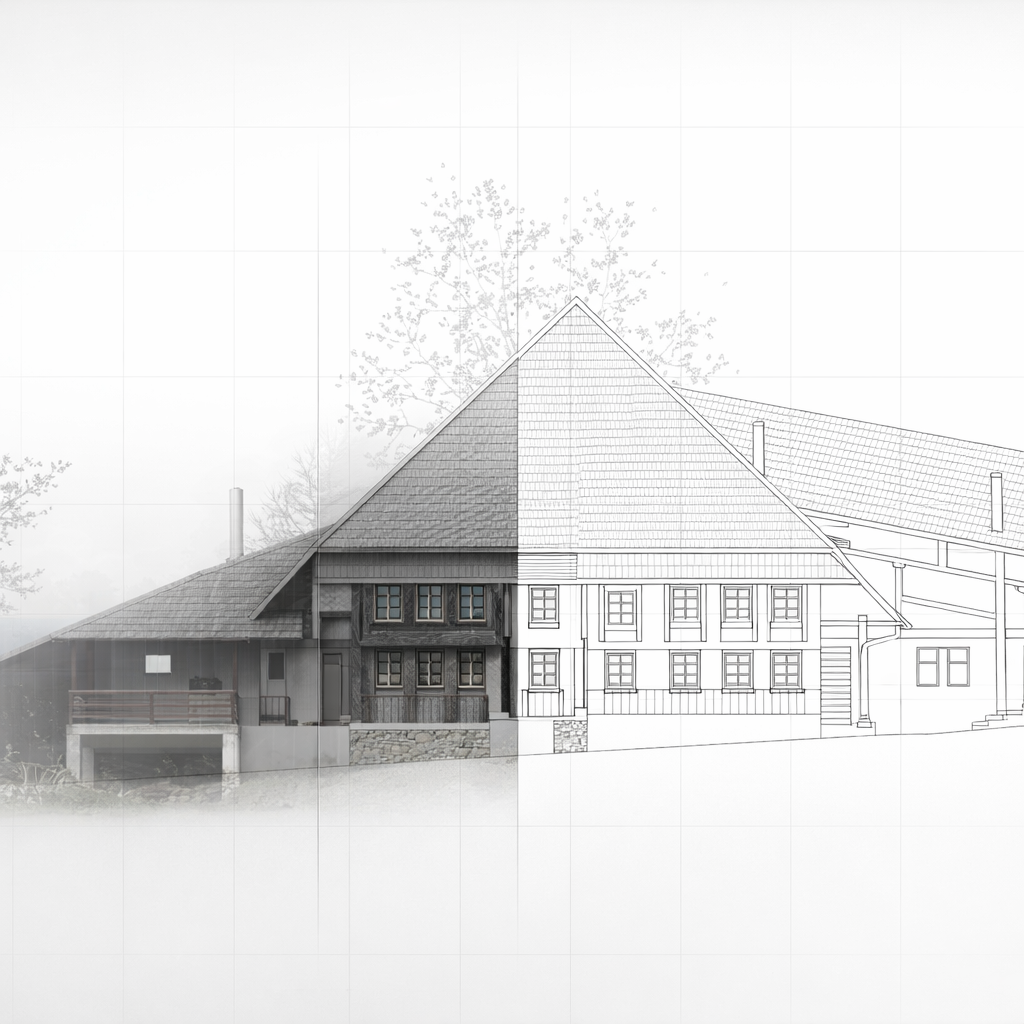
In Wattenwil near Bern (Switzerland), a historic farmhouse that had fallen out of regular use due to high maintenance costs was scheduled for full renovation and reuse as a residential building. For this project, precise as-built documentation for renovation projects was required to support planning, design decisions and cost estimation.
Since no reliable plans existed, the architectural office AAP Atelier für Architektur und Planung AG was commissioned to carry out the 3D laser scanning survey and evaluation.
Why 3D Laser Scanning Was the Optimal Survey Method
Old farmhouses often have irregular geometry owing to historical construction techniques and settling over time. Traditional measurement methods can struggle to capture such complexity efficiently, and missing or inconsistent documentation increases planning risk. In this project, 3D laser scanning provided a precise and complete dataset suitable for detailed planning in CAD.
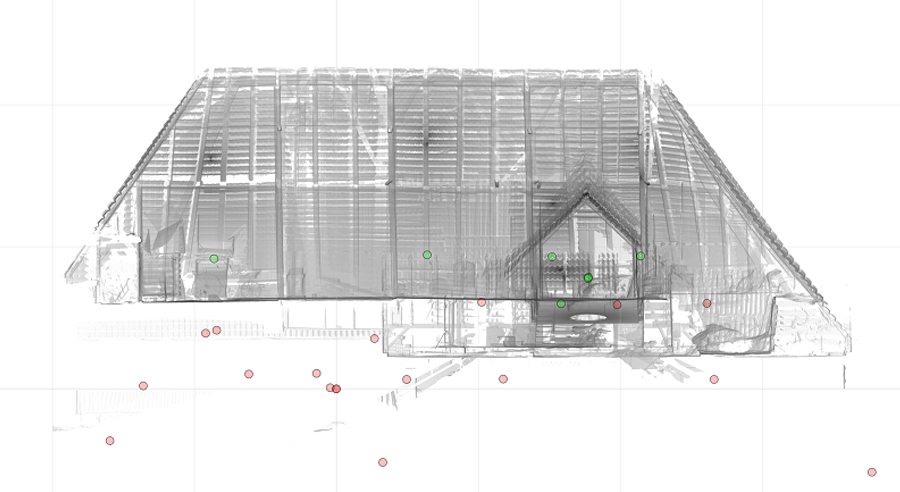
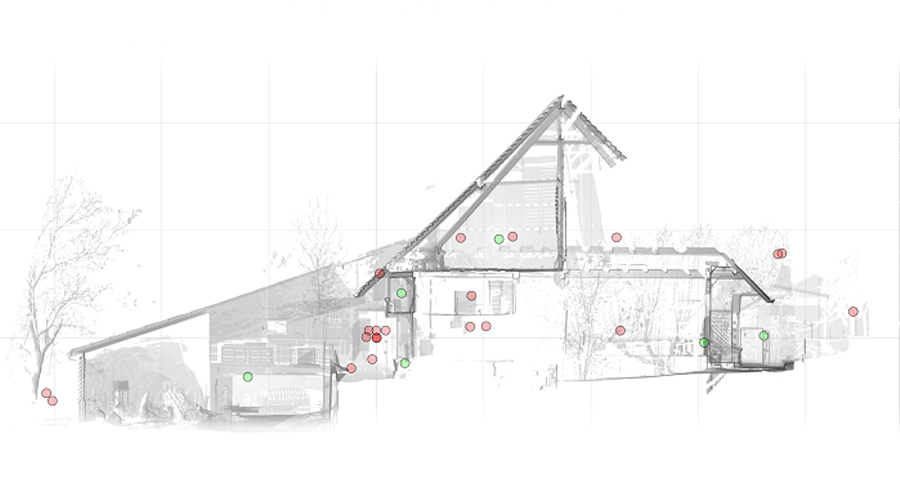
For this reason, a FARO Photon 120/20 laser scanner was used. Over two full days of on-site work, the team captured around 30 individual scans covering all important surfaces, including:
- facades,
- internal floor plans,
- load-bearing structure,
- and architectural details necessary for renovation planning.
The point cloud data was registered using reference targets to ensure spatial accuracy and full coverage of the building geometry.
From Point Cloud to Planning Deliverables Using PointCab Origins and ArchiCAD
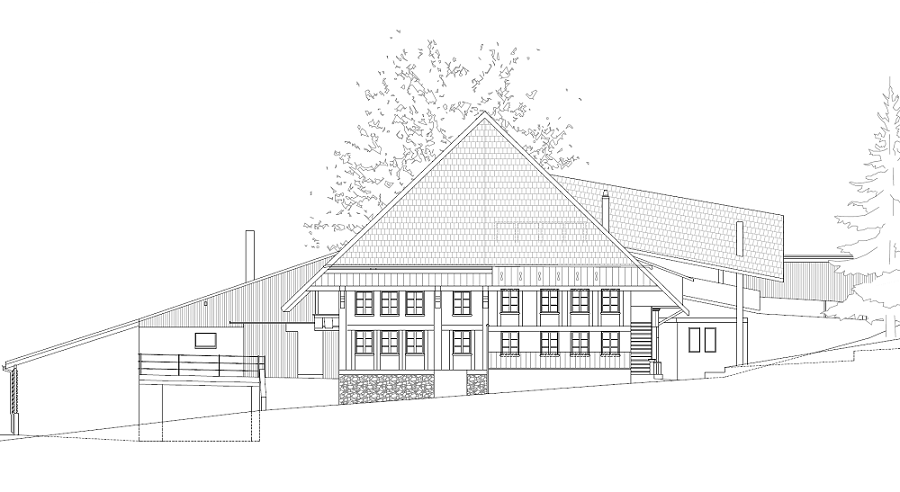
Once the raw scan data was collected, the exported point cloud was processed with PointCab Origins, enabling fast extraction of key deliverables:
- accurate floor plans,
- sections, and
- facade drawings.
Thanks to PointCab Origins’ workflow, these outputs were quickly read into the customer’s CAD system, Graphisoft ArchiCAD, where they served as the basis for further planning and material estimation. The clarity and accuracy of the extracted plans helped determine rehabilitation needs, material quantities, and cost implications early in the project.
The combination of scan capture and software evaluation significantly reduced manual drawing work and enabled planners to focus on design and implementation rather than re-measurements.
Why As-Built Documentation Is Essential for Renovation Projects
This farmhouse case demonstrates several clear advantages of using 3D laser scanning and point cloud processing for renovation:
- Precise real-world geometry: captures every irregularity and construction detail that would otherwise be missed on paper plans.
- Efficient workflow: rapid on-site scanning and fast post-processing deliver usable CAD data in a short timeframe.
- Planning confidence: reliable digital data reduces risk when estimating effort and materials for big renovation decisions.
- Seamless integration: outputs easily transfer to common CAD systems for further design and documentation.
For renovation projects of older buildings, especially those without current documentation, this approach is a strong foundation for both the design process and accurate cost planning.
Want to keep up with the latest pointCab news?
Then follow us on Social Media or subcribe to our newsletter!