



ANWENDERBERICHT
Präzise Fassadenschnitte durch Ebenenerkennung aus einem Einzelscan

This workflow was inspired by a customer project where highly accurate facade deviation analysis was required. The objective was to evaluate the actual geometry of the facade rather than the quality of the scan registration itself.
To support this requirement, PointCab Origins allows users to create sections directly from a plane detected within a single scan. Because the section orientation is derived from the measured facade surface, registration-related influences can be minimized, resulting in a reliable basis for precise deviation analysis.
Plane-Based Section Creation for Highly Accurate Facade Analysis
When working with terrestrial laser scanning data, creating highly accurate facade sections can be challenging. Even carefully registered datasets may contain small residual alignment errors between scan positions.
While these are often negligible for visualization, they can influence facade inspections, flatness assessments, deformation analyses, and quality control measurements.
Why Does This Matter?
Standard sections created from a registered point cloud are suitable for the vast majority of laser scanning projects. However, some applications place greater emphasis on geometric precision, including:
- Facade inspections
- Construction quality control
- Building deformation monitoring
- Historic preservation and restoration projects
- Structural assessments
- High-precision architectural documentation
In these scenarios, even small registration deviations can influence section orientation and measurement results. Using a plane derived from a single scan provides a stable reference based directly on the captured surface geometry.
Understanding Delta Analysis
This workflow becomes particularly valuable when using the Delta Tool. It calculates and visualizes deviations between measured points and a reference geometry. The results are typically displayed as a color-coded deviation map, making it easy to identify:
- Surface irregularities
- Bulging areas
- Deformations
- Construction tolerances
- Flatness deviations
The quality of the analysis depends heavily on the quality of the reference geometry. If the section is slightly misaligned due to registration inaccuracies, a perfectly flat wall may appear to have deviations that do not actually exist.
By generating the section directly from a detected plane within a single scan, the reference geometry is aligned as closely as possible to the actual facade surface. This significantly improves the reliability of the Delta analysis and helps ensure that detected deviations represent real geometric conditions rather than registration artifacts.
The Challenge & THE SOLUTION
When multiple scans are combined into a single dataset, small registration inconsistencies can remain. Although often insignificant, they may influence the orientation of sections used for detailed facade evaluations.
PointCab Origins addresses this by allowing users to generate sections from planes identified within a panorama image. Since the section is created from the detected surface itself, it provides a precise reference for further inspection and comparison tasks.
Important Requirement
This workflow is only possible with ordered point clouds.
This means:
✔ The data must originate from a terrestrial laser scanner.
✔ Panorama images must be available.
✔ The original scan structure must be preserved.
Unsupported Data
The workflow will not work if the project:
- Was exported as LAS
- Originates from mobile mapping
- Originates from UAV mapping
- Was converted to another format without preserving panorama images
- Was exported to E57 without panorama information
⚠️ Plane detection relies on the original scan panoramas and their relationship to the underlying scan points. Without this information, PointCab Origins cannot calculate planes directly from the scan images.
WORKFLOW OVERVIEW
Step 1 – Open the Panorama
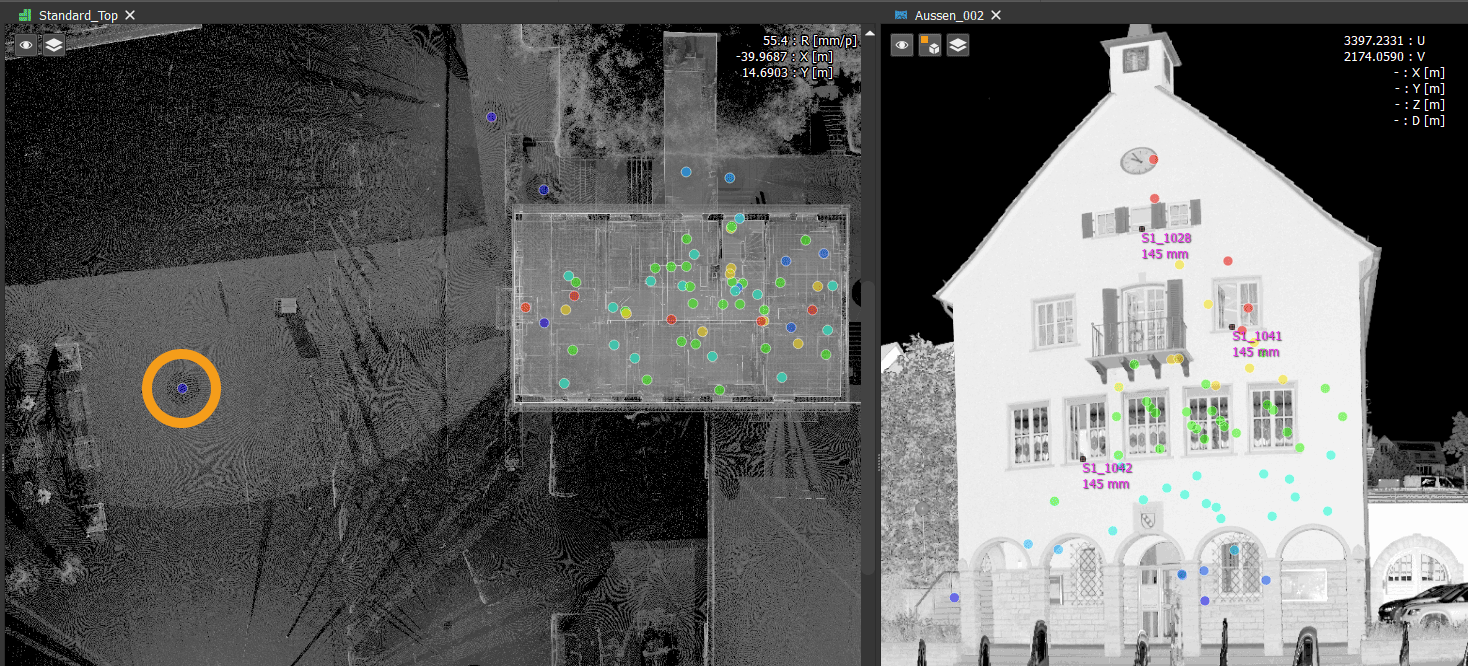
Begin by opening a panorama image that clearly captures the facade you want to analyze.
The facade should be visible over a sufficiently large area to allow reliable plane detection.
Step 2 – Detect the Facade Plane
Activate the Plane Tool and hold the ALT key while hovering over the facade.
PointCab Origins automatically analyzes the selected area and calculates a best-fit plane based on the underlying scan points.
The detected plane is immediately visualized within the panorama.
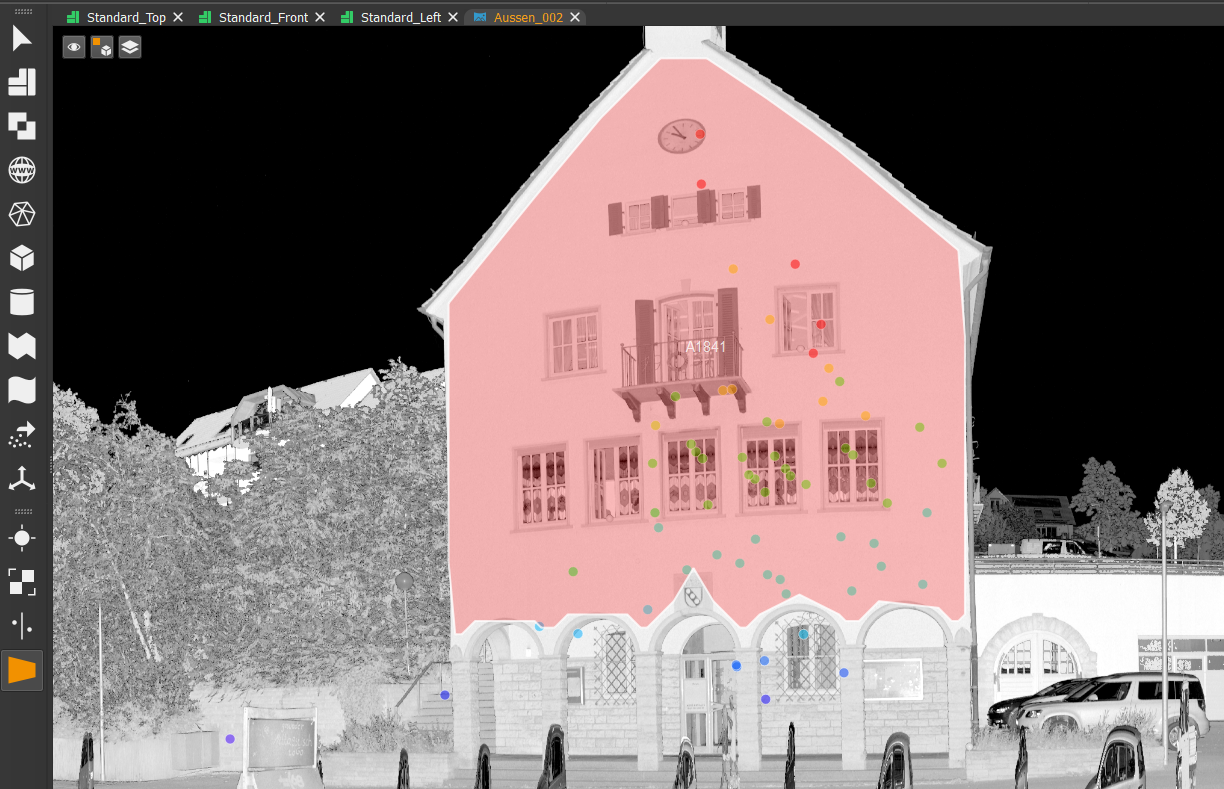
Step 3 – Create an Initial Line
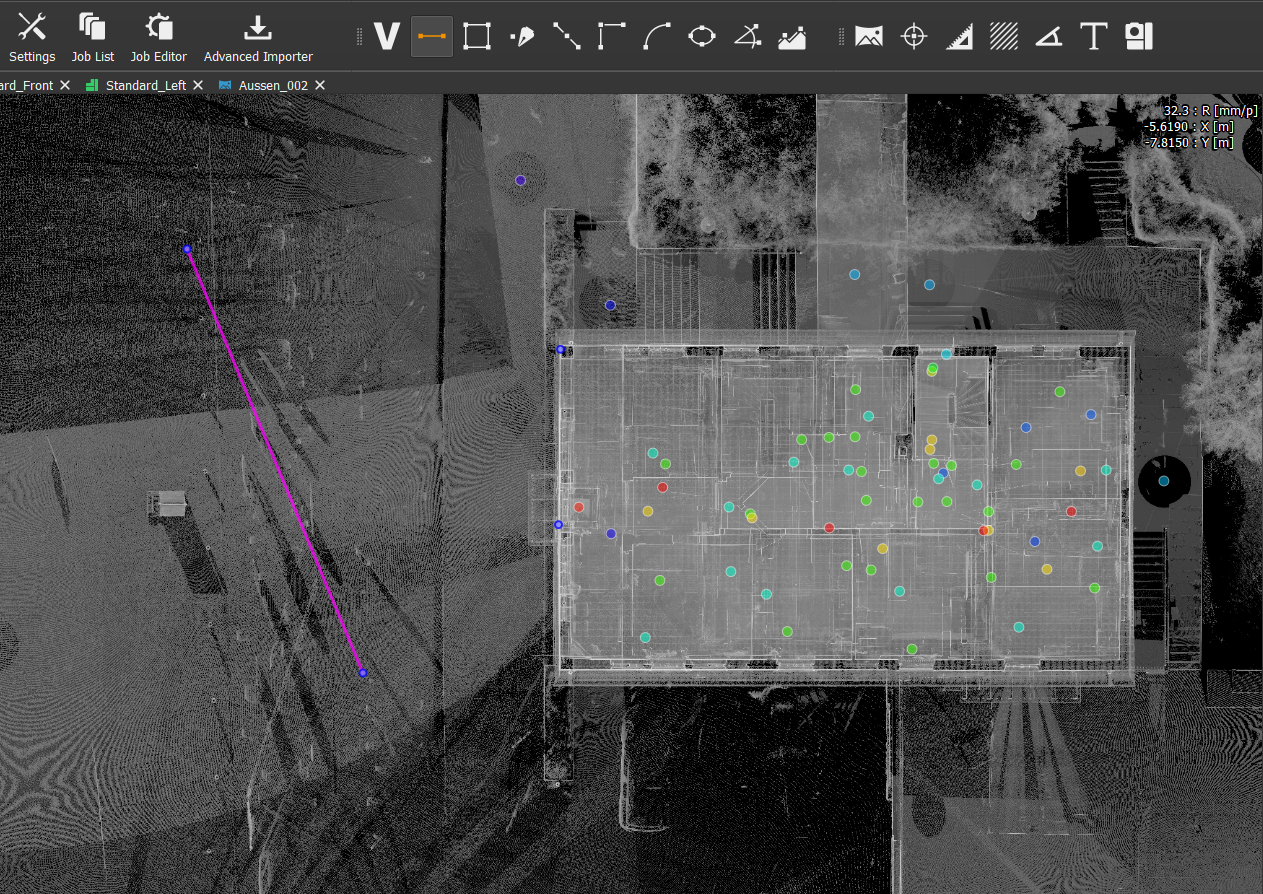
Switch to the top view and create a vector line approximately along the desired facade section.
This line serves as the initial reference geometry.
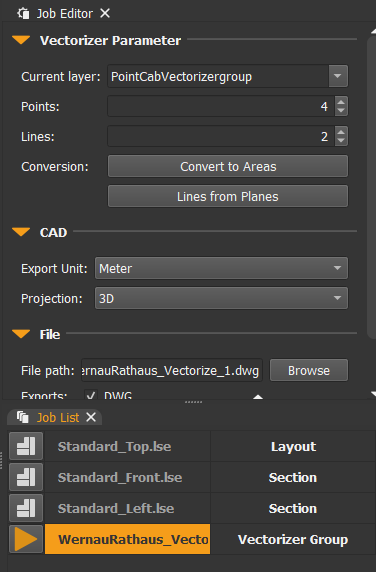
Important Note
The Lines from Planes function is only available when the Vectorizer Group is selected in the Job Editor.
It is not available when selecting the individual line itself.
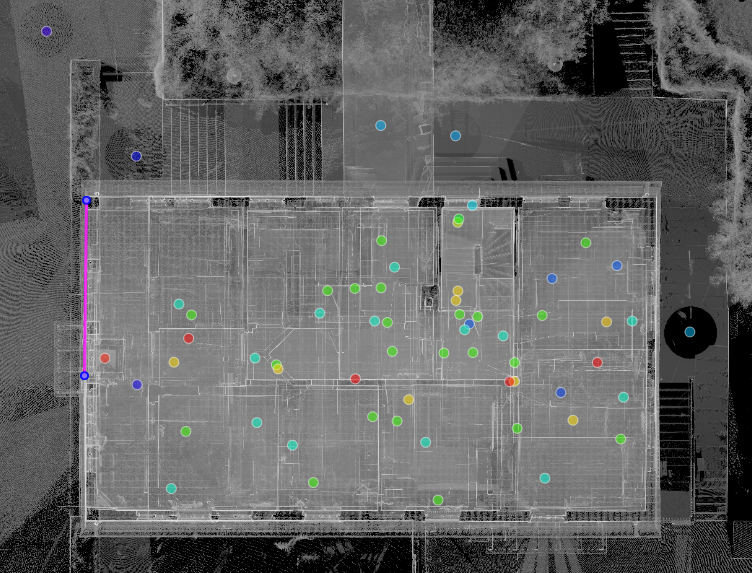
Step 4 – Generate a Plane-Based Line
Execute the Lines from Planes operation.
PointCab Origins projects the reference line directly onto the detected facade plane and creates a new line that is perfectly aligned with the wall surface.
Step 5 – Convert the Line into a Section
Select the newly generated projected line.
The Job Editor now provides the option:
Convert to Section
Execute the operation to create a section based on the detected facade plane.
Important Note
The projected line itself must be selected in order to access the Convert to Section command.
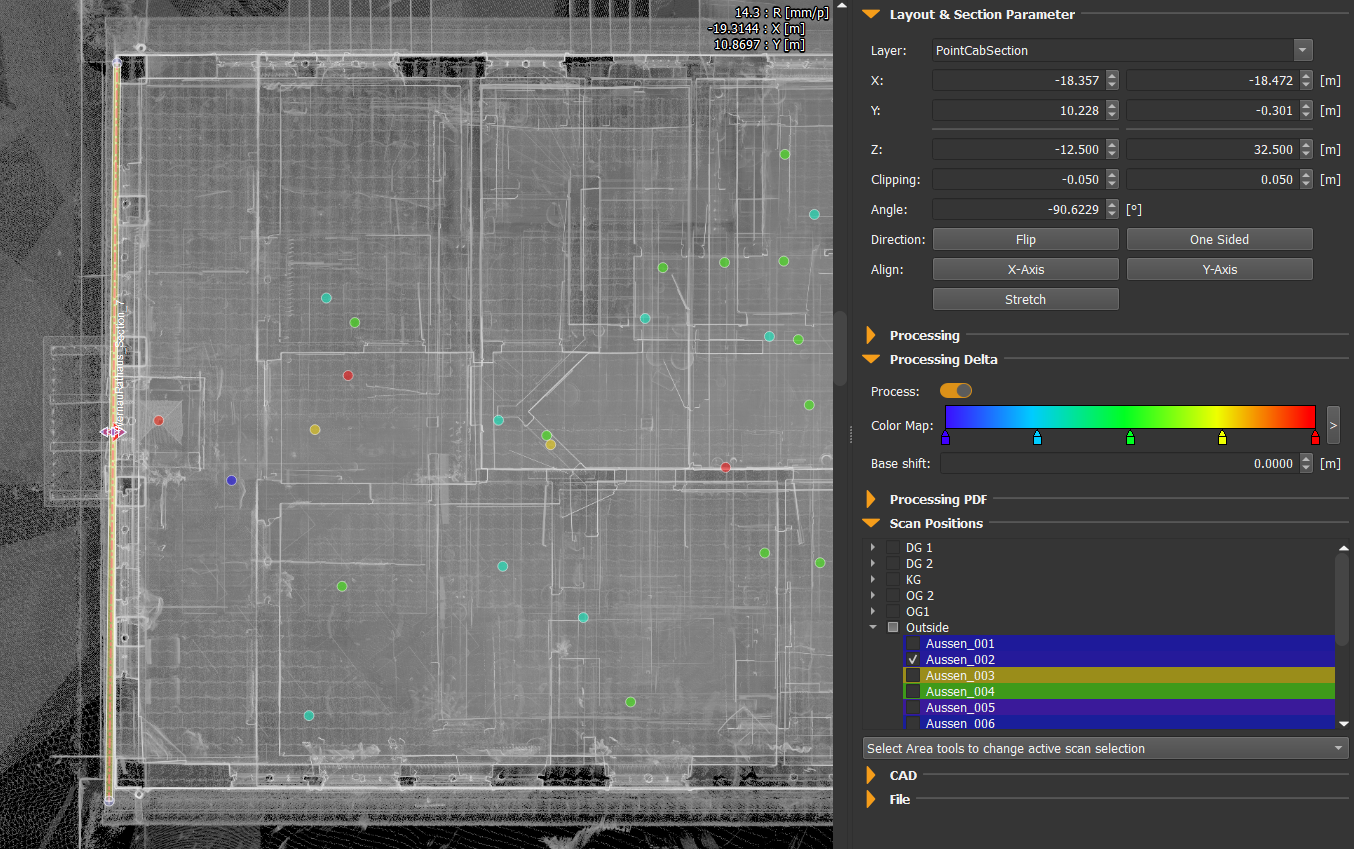
Step 6 – Refine the Section Settings
The section can now be optimized according to the project requirements.
Typical adjustments include:
- Section thickness (e.g., 5 mm)
- Section length
- Clipping range
- Stretching parameters
- Visualization settings
For maximum accuracy, the section should be processed using only the scan from which the plane was originally detected.
Enable Delta Processing if a deviation analysis is required.
Using a single scan ensures that the analysis is not influenced by registration discrepancies from neighboring scans.
The Result
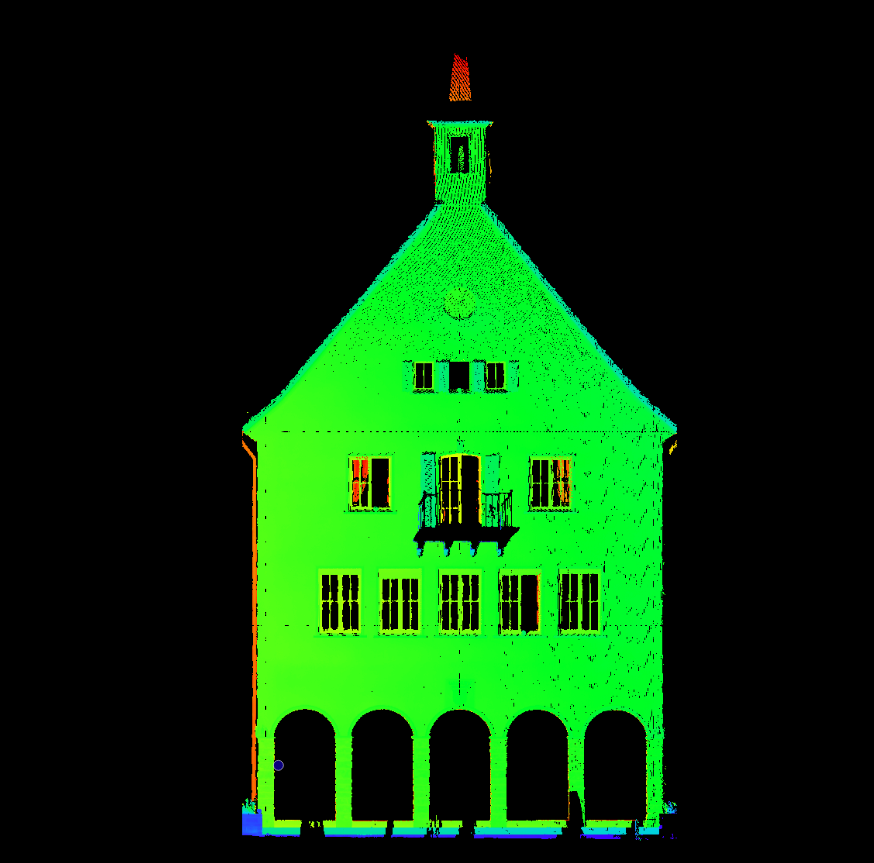
The final section provides a highly accurate representation of the facade and serves as an excellent basis for deviation analysis.
Because the workflow relies on a single scan:
- Registration errors are effectively eliminated
- The section is perfectly aligned to the detected facade plane
- Delta analysis becomes more reliable
- Surface irregularities can be identified with greater confidence
- Measured deviations reflect actual building geometry rather than registration artifacts
The resulting deviation map is aligned precisely to the plane calculated from the point cloud of a single scan, providing a clean and trustworthy dataset for further evaluation.
Who Benefits from This Workflow?
This workflow is particularly valuable for:
Surveyors
Producing accurate facade documentation and quality assurance deliverables.
Architects
Working with dependable as-built data for renovation and restoration projects.
Engineering Firms
Investigating structural movement, settlement, and deformation.
Construction Companies
Checking facade alignment and building tolerances against project requirements.
Heritage Preservation Specialists
Recording and analyzing historic structures where geometric accuracy is essential.
Want to keep up with the latest pointCab news?
Then follow us on Social Media or subcribe to our newsletter!